
Guide
How to find mixed content on a WordPress site, and fix it
Find mixed content on a WordPress site with a mixed content checker that reads the rendered page, see where each insecure reference comes from, and fix the common causes.
Published July 31, 2026 in Guides
Your site is on HTTPS and the certificate is valid, yet a page shows a warning where the padlock should be, or an image has gone. The usual cause is mixed content: something on the page still loading over plain HTTP. This guide shows how to find it with a mixed content checker that reads the page your visitors are actually served, and how to fix what it finds.
What mixed content is, and why the padlock breaks
On an HTTPS site, anything that loads as part of the page must also load over HTTPS: images, embeds, stylesheets, scripts and fonts. A reference that still uses plain http:// is mixed content. The page itself arrived securely and part of it did not, so the browser can no longer vouch for the whole page and stops showing it as fully secure.
Browsers then block or downgrade the insecure part. That is why mixed content often looks like a different fault: an image vanishes, a style breaks or an embed shows nothing, even though the file itself is fine and opens perfectly well on its own.
Plain links are a different matter. A link to an http:// address is a normal navigation when someone clicks it, not part of the page, so it is not mixed content. And on a site that is not served over HTTPS at all, the question does not arise.
Why a database search misses mixed content
The usual first move is to search the database for http:// and replace it. That fixes the addresses stored in your posts, but only those. A page is assembled from far more than its content: the theme, menus, widgets, footers and page builder blocks all add their own markup, and some of it is only written out when the page is rendered.
Most checkers read links out of your database, so they share the same blind spot. PlugUpp Link & Image Health Audit works the other way round. It renders each of your own pages through the normal front-end pipeline and inspects the final HTML, so it checks the images, embeds and page resources that actually ship to visitors, including those added by your theme, menus, widgets, footers and page builder.
Run the mixed content checker
Install the plugin from WordPress.org and activate it, and a Link Health menu appears in the admin sidebar. Mixed content detection is in the free plugin, with no quota: everything runs on your own server.
Open Link Health. Before your first scan, the Dashboard shows one step, Scan your site, with the Scan now button in it. Click it. The plugin renders each of your pages the way a visitor’s browser would, collects every link, image and resource they contain, and checks each one. You can leave the page while the scan continues in the background.
The first scan covers your posts and pages. In Settings you can add custom post types, and unpublished content such as drafts and scheduled posts, which is rendered privately for the scan only and never shown to visitors. Leave Check resources switched on, as it is by default, so the stylesheets, scripts, icons and fonts each page references are checked as well.
Reading the mixed content findings
Results come in two views, By page and By URL, both sorted worst-first. Mixed content is a warning rather than an issue: the file is there, it is just being fetched the wrong way. On the By URL view the finding names the address loading over plain HTTP, says what browsers do with it, and spells out the fix: serve the same file over https://.
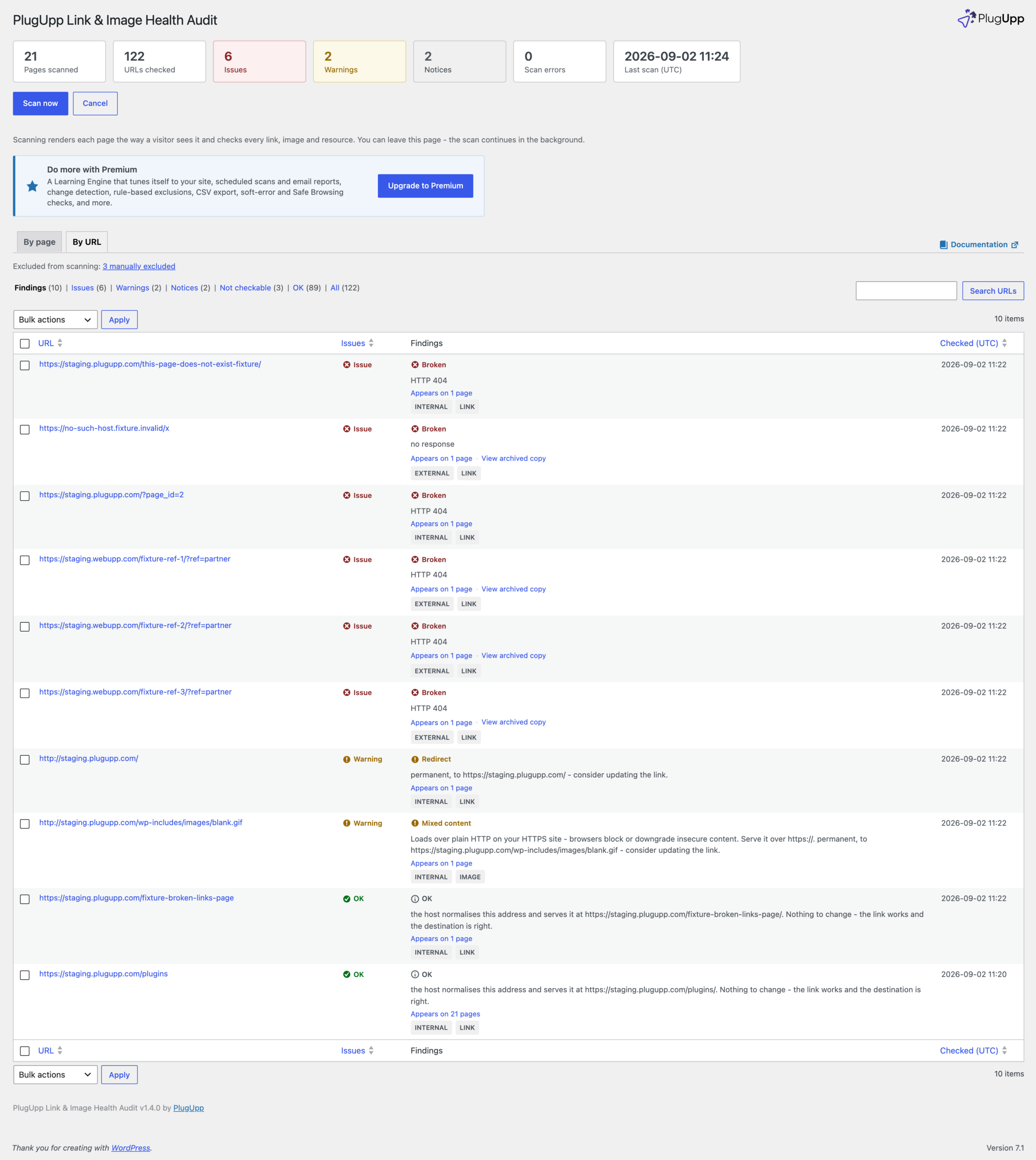
Each row also shows how many of your pages use that address. Open the finding to see every page it is on, and to reach the quick actions: View page, Edit page and View source.
Find where each insecure reference comes from
The question that decides the fix is where the http:// address comes from. View source answers it. It re-renders the page and highlights the offending reference right where it appears in the HTML, so you can tell whether it came from your content, a widget, the theme or a page builder block.
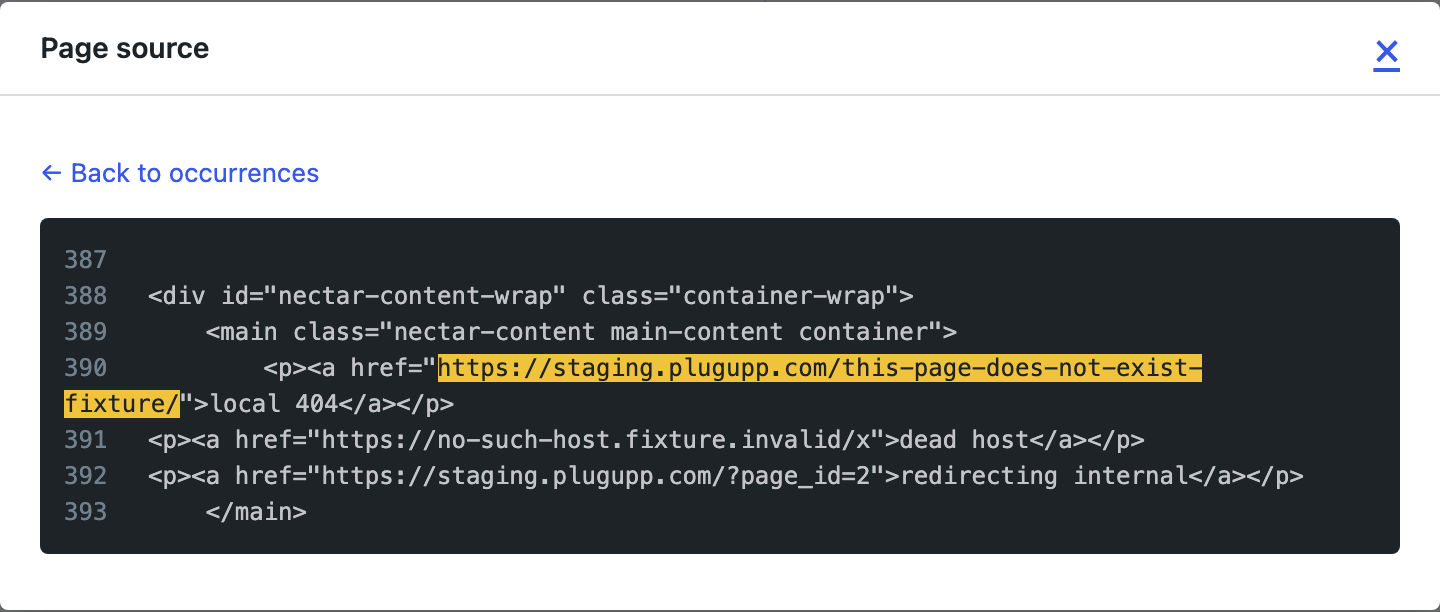
Fixing the common causes of mixed content
- Addresses typed in before the move to HTTPS. Images inserted into older posts keep the address they were inserted with. Edit the post and change
http://tohttps://, or run a search and replace across your content. - The WordPress Address and Site Address settings. If either address under Settings, General still starts with
http://, WordPress builds plain HTTP addresses for much of what it outputs. Change both tohttps://once the certificate is in place. - Theme and widget settings. Logos and header images chosen in the Customizer, and images in widgets, are stored as settings rather than in posts, which is why a content search walks past them. Choose the image again where it was set.
- Page builder blocks. Backgrounds and embeds set in a builder’s own options live with that block. Open the block and update the address there.
- Files from another site. If an image, script or font comes from a host that does not serve it over HTTPS, switch to the host’s
https://address if it has one, or serve a copy from your own site.
Then check the fix. On the By page view, every row offers Re-scan, which checks just that page’s links and images again without a scan of the whole site. When the warning clears, the page is loading everything securely.
Keep the mixed content checker running
Everything in this guide, from the scan to View source and Re-scan, is in the free plugin. Premium adds scheduled scans, email reports and change detection, so new findings reach you after each scheduled scan without you having to remember to look. The plan comparison is on the product page.

About the plugin
Link & Image Health Audit
Find broken links, broken images and SSL problems on the pages your visitors actually see.
Rendered-page scanning
Broken links & images
Local & private
Free + Premium versions
