
Guide
Set up and check our WordPress plugins with an AI agent
Our WordPress plugins now expose their operations to AI agents through the WordPress Abilities API and WP-CLI: configure, populate and check each plugin from one file, with a dry run and a named report every time.
Published October 17, 2026 in Guides
What an agent can now do with a PlugUpp plugin
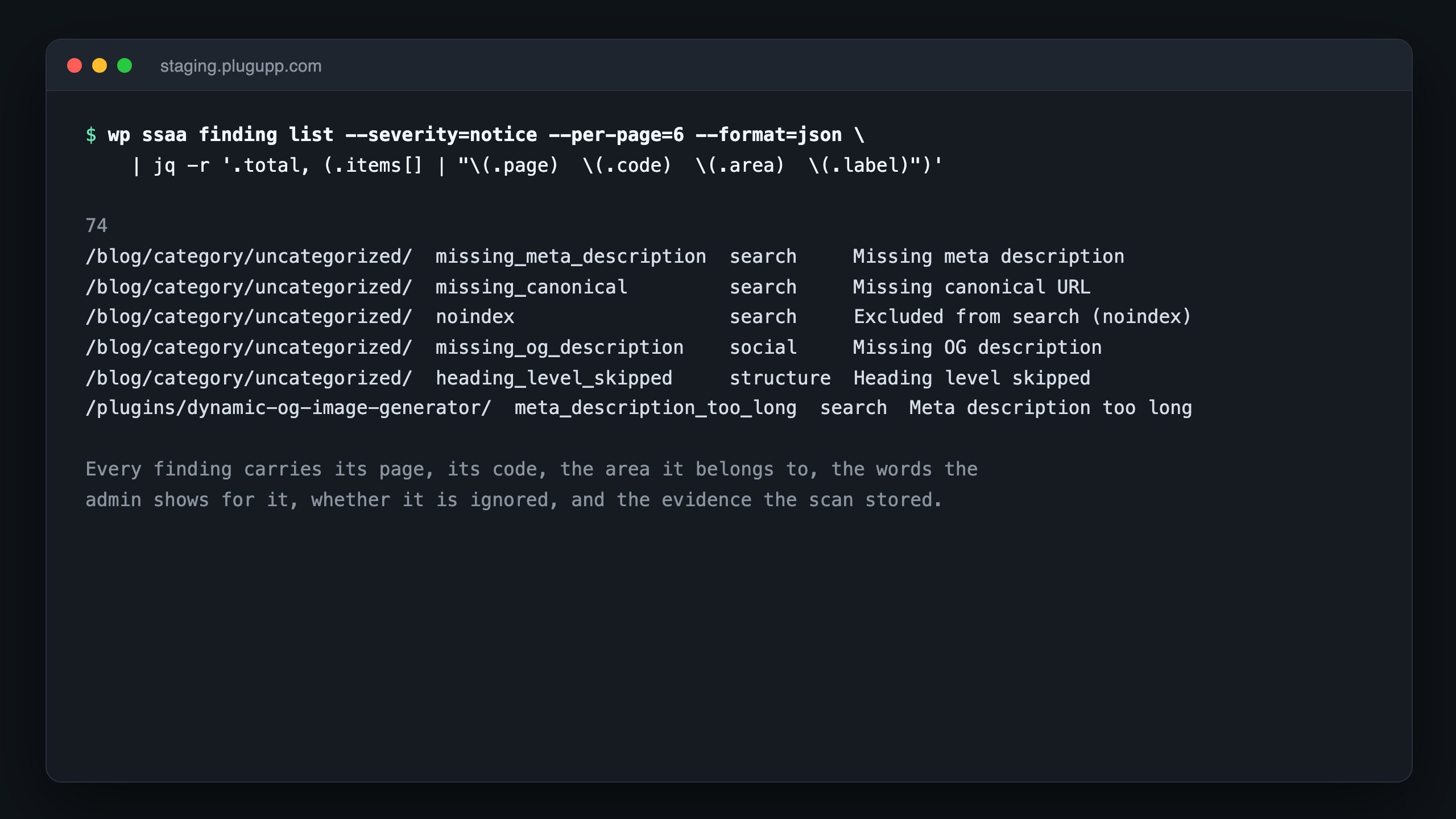
Dynamic OG Image Generator, Link & Image Health Audit, Search & Social Appearance Audit and Live Pricing for Freemius each expose their operations to AI agents. An agent can read what a plugin knows, write its configuration as one file, apply that file, and check the result, with no admin screens involved.
That matters when a site is built or maintained by an agent working alongside a person. The agent reads what an audit found, with the evidence behind each finding. It sets up a plugin on a staging site from a file, then applies the same file to production and gets the same result. It checks a site’s state before and after a change and reports exactly what moved.
How the plugins expose their operations
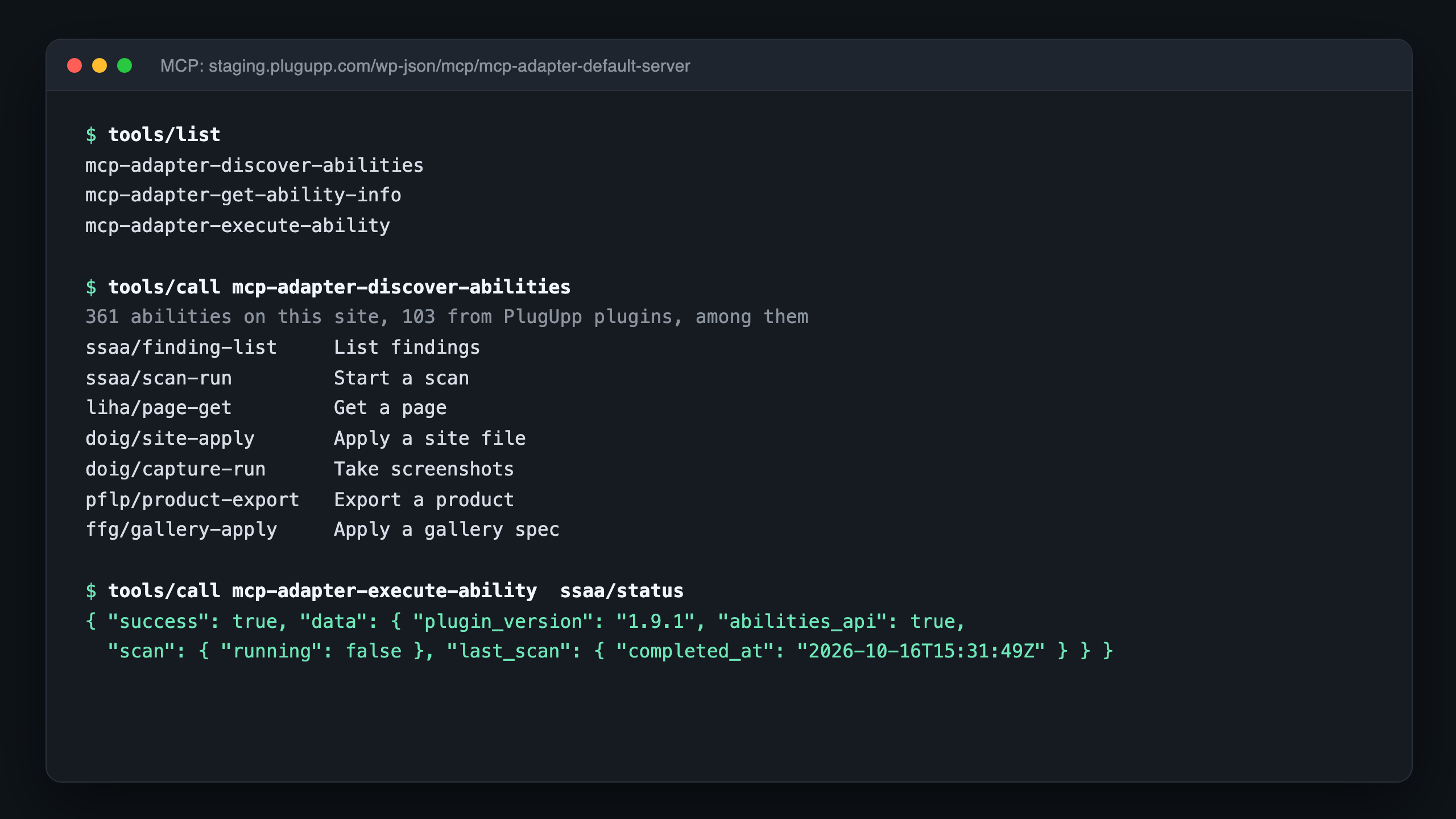
Each plugin registers its operations through the WordPress Abilities API, which arrived in WordPress 6.9, and as WP-CLI commands. The two are one set of operations with two doors: an agent connected over MCP uses the abilities, and a site builder with a shell uses the commands.
Any agent that speaks MCP reaches the abilities through the official WordPress MCP Adapter. Claude is one such agent; others work the same way. The adapter is one plugin to install and one user to set up, and a single command on the site does the setup for every PlugUpp plugin at once.
On a site running an earlier WordPress, the WP-CLI commands are still there.
What every operation guarantees
Every write has a dry run that shows exactly what would change before anything does. Every change is reported by name: created, updated, unchanged, removed or refused, never a count alone. Applying the same file twice changes nothing, and the report says so. A key the site does not have is refused by name.
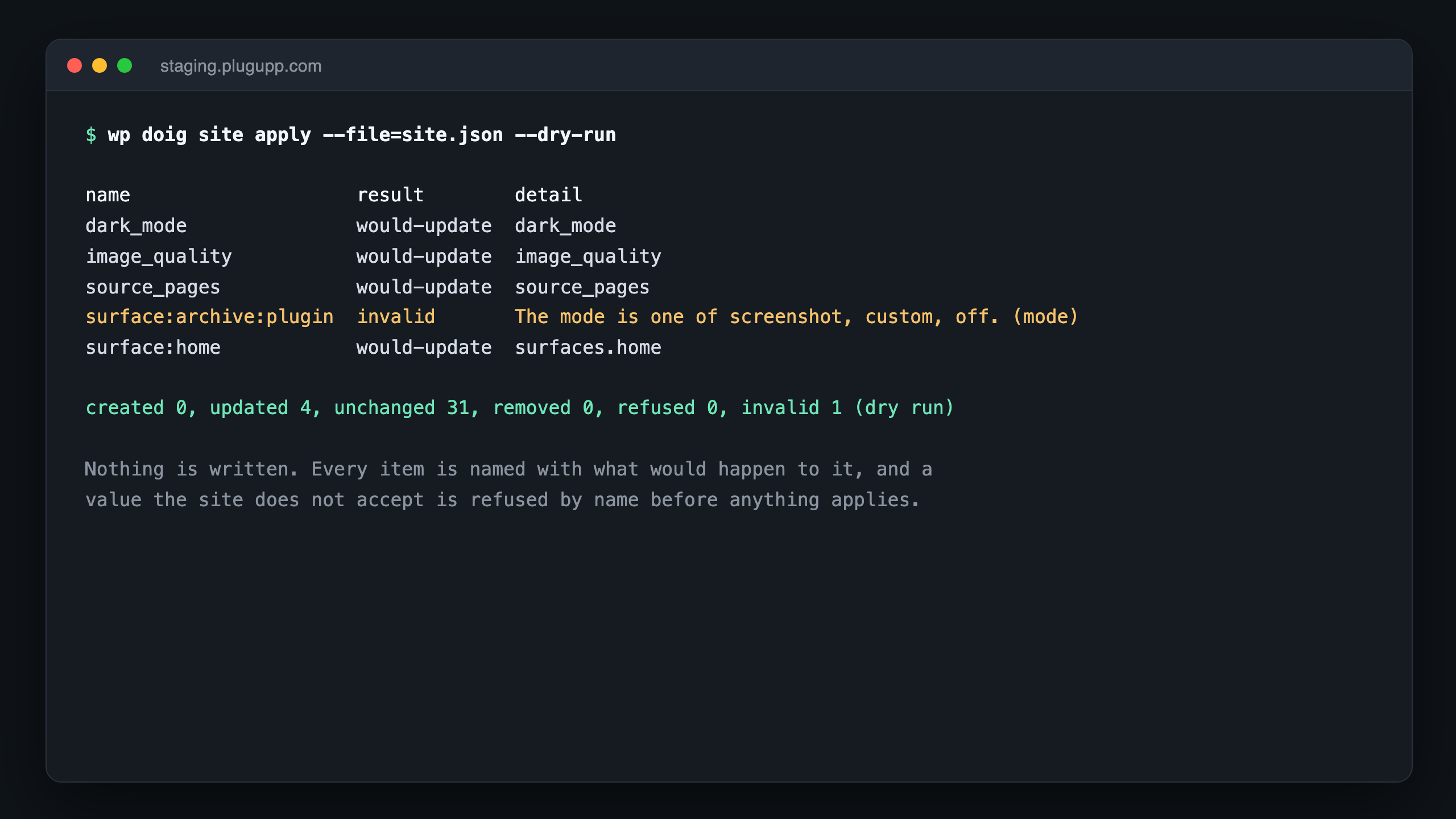
Configuration travels as a file that names things by slug, never by database ID, so a file written on a staging site applies unchanged on the live one. Where a person has edited something in the admin since the file was written, the apply refuses to overwrite it unless told to.
What stays in your hands
The agent connects as its own restricted WordPress user. It can read and apply configuration; it cannot delete, and it holds no administrator rights. Passwords, API keys and tokens never cross the agent surface: a person enters each one once, in the admin, and no operation returns or exports it.
The plugin tells the agent what it found. What to do about it is your decision, or your agent’s under your instruction. The plugins recommend nothing.
How to get started
On WordPress 6.9 or later, install the WordPress MCP Adapter, run the provisioning command the plugin documents, and point your agent at the site. Each plugin serves its own agent guide, so the agent reads the workflow from the plugin itself rather than from a manual. The free version of every plugin carries the full agent surface; a premium plan adds its own settings to it.
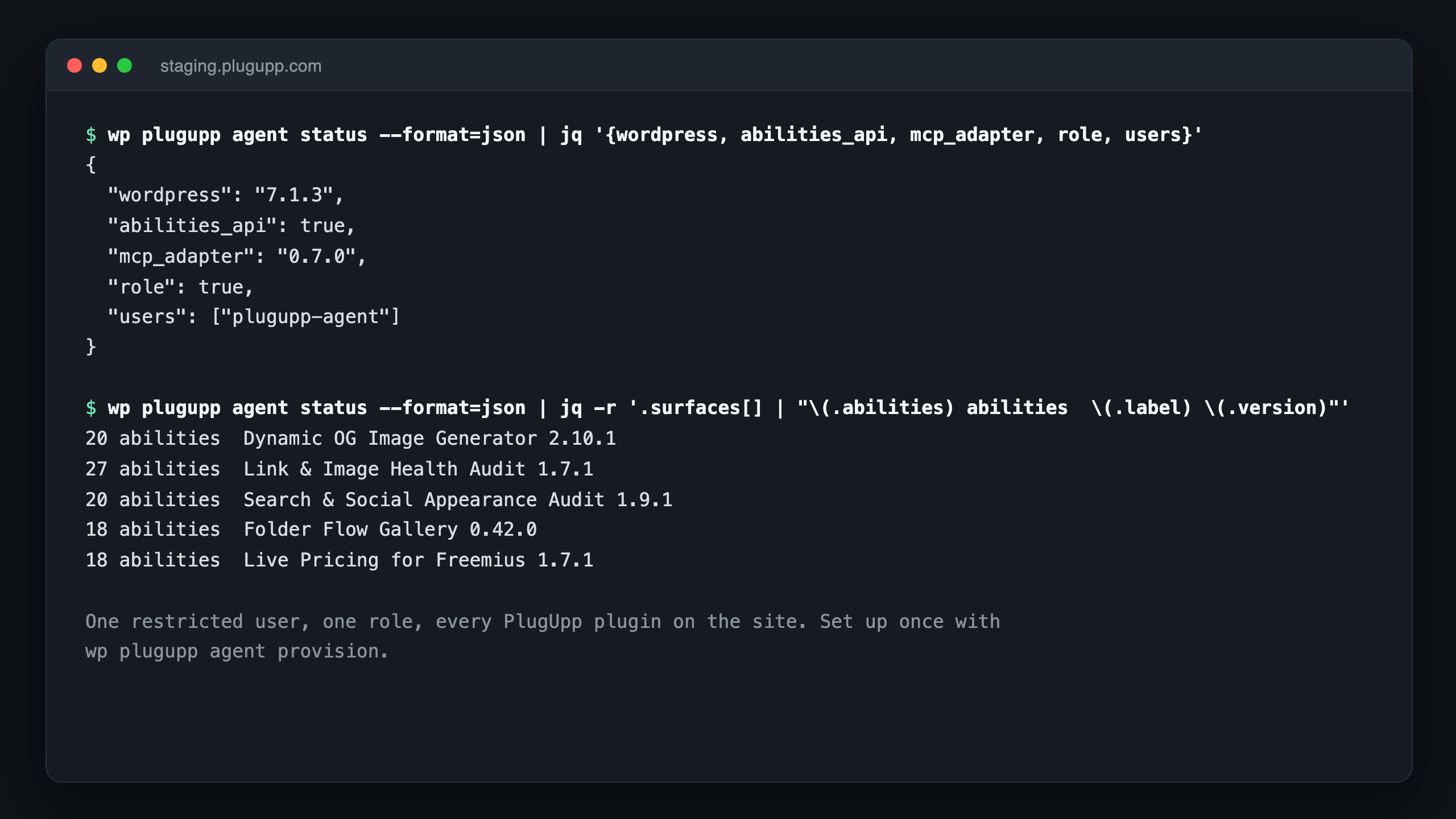
Each plugin’s documentation has the full list of operations and the file format it reads.
