
Guide
How to attach a PDF to a Gravity Forms notification
Attach a PDF to a Gravity Forms notification: a brochure, a price list or a guide from the Media Library, sent with every email, or a private file never shown by address.
Published October 11, 2026 in Guides
Gravity Forms can attach the files a visitor uploads. It cannot attach a file you already have, such as a brochure, a price list or the guide a page is about. This guide sets up a Gravity Forms PDF attachment on any notification with PlugUpp Dynamic Attachments for Gravity Forms, so every email that notification sends carries your file. It takes about ten minutes from install to a notification that carries files.
Send a file you already have with every form
Plenty of forms exist to hand something over: a guide request, a brochure download, a booking with terms attached, a course with its handouts. The visitor fills in the form and the document should arrive in the email that follows.
The plugin adds that to each notification on its own. Every notification gets an Additional attachments section with two switches, and nothing changes until you turn one on. Gravity Forms’ own Attach uploaded fields to notification setting works as before. Everything runs on your own server through Gravity Forms’ usual sending, and your forms, entries and files are never sent to any outside service.
Install the plugin from WordPress.org
The plugin is on WordPress.org. In your WordPress admin, go to Plugins, then Add New, search for PlugUpp Dynamic Attachments for Gravity Forms, and install and activate it. It needs WordPress 6.0 or later, PHP 7.4 or later and Gravity Forms 2.5 or later. No other plugin is needed.
For a PDF that goes with every send, there is nothing else to set up. Choosing post types on the plugin’s tab under Forms, Settings is only needed for the page’s own files, which come later in this guide.
Add a Gravity Forms PDF attachment to a notification
Open the form, then Settings, then Notifications, and edit the notification that should carry the PDF. Scroll to the end. The Additional attachments section sits below Gravity Forms’ own settings, and those settings are not changed.
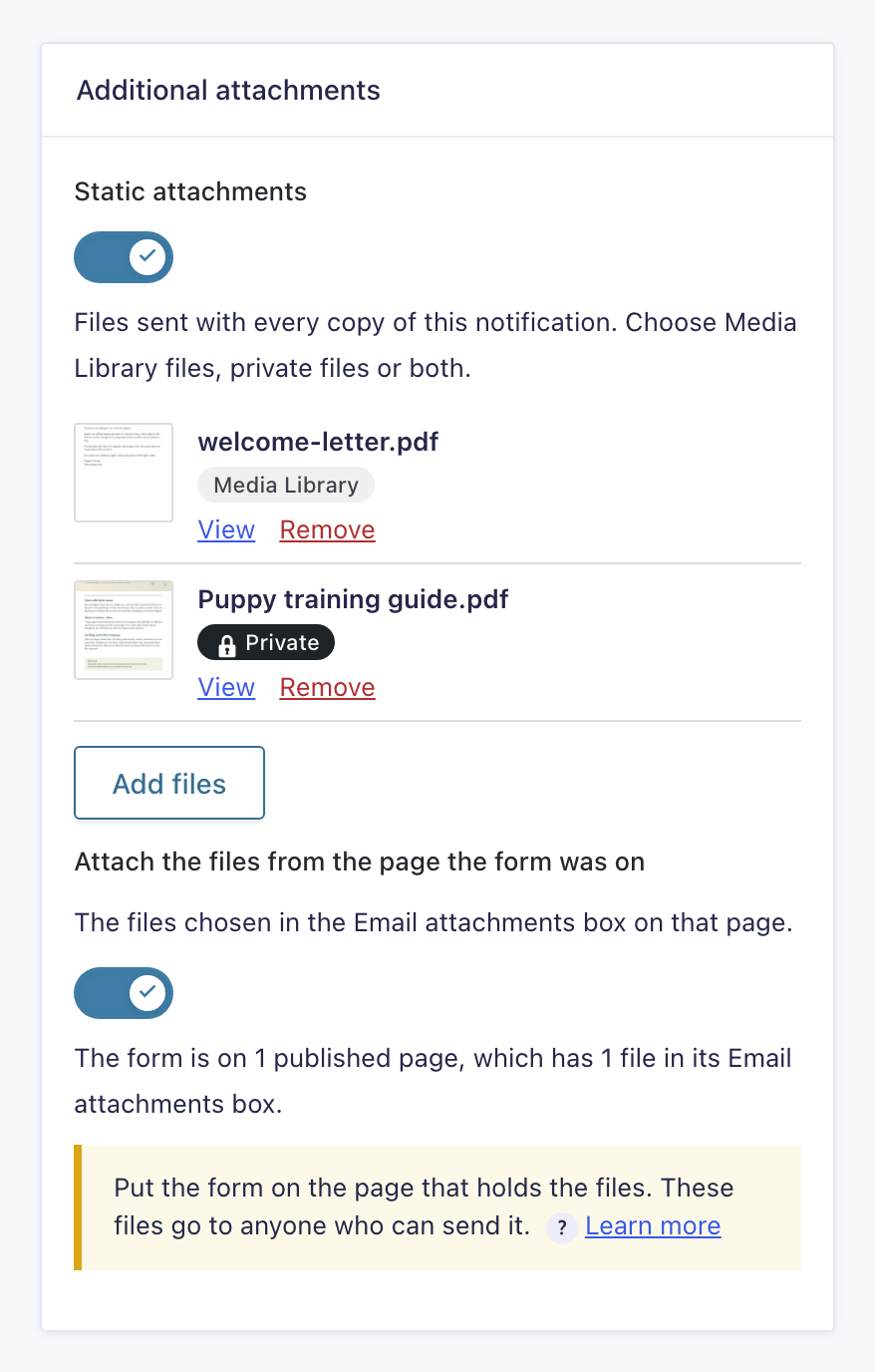
Turn on Static attachments. Static attachments are files you pick once for a notification, and every send of that notification carries them. The file list and an Add files button appear beneath the switch.
Choose the PDF from the Media Library
Press Add files. The window that opens has three tabs. Upload files and Media Library are WordPress’s own, so pick the PDF in the Media Library, or upload it in Upload files, then press Add to notification. Press Update Notification to save.
Each chosen file is listed with a small preview, its file name and a pill under the name saying Media Library or Private, then View and Remove. Remove takes one file off this notification and nothing else. With Static attachments on, at least one file is needed, so saving an empty list shows an error and saves nothing.
The notification stores a reference to the file, never a web address and never a copy. At every send the plugin looks up where the file is right now, so when you replace the PDF through the Media Library, the next send picks up the change.
Brochures, price lists and guides as PDF attachments
A PDF is the typical case, but any type your Media Library accepts can be attached: PDFs, Word documents, images, text files and so on. The plugin does not change what can be uploaded, and uploading here follows your usual Media Library permissions.
A notification can carry several files. One email never carries more than 25 MiB of files, counted over every file before encoding, including files visitors upload. Encoding adds about a third to the size, and many mail providers accept less, so keep attachments well under it. A file attached twice, by this list and by Gravity Forms’ own uploaded-file setting, goes into the email once.
Send each page’s own PDF from one form
One fixed PDF suits a form that always sends the same file. When one form sits on many pages, each about something different, use the second switch, Attach the files from the page the form was on, instead or as well.
Each page, post or custom post type record of the types you tick gets an Email attachments box on its edit screen, in the block editor’s sidebar or the classic editor’s side column. Press Add files, pick the page’s PDF and press Add to page. Put the form on the page and turn on the second switch in the notification. Gravity Forms saves the page a form was sent from, so one form and one notification can deliver a different file from every page it sits on. There is no hidden field and no merge tag to set up.
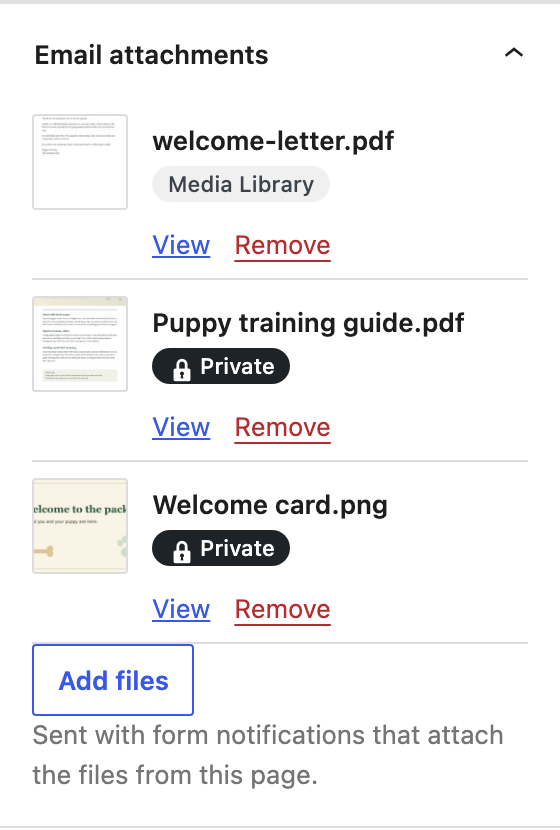
You choose which post types show the box under Forms, Settings, Additional attachments, where Posts and Pages are ticked to start with. Attaching the files from the page needs Gravity Forms 2.9 or later. Static files and the page’s files work together on the same notification, and a file reached both ways is attached once.
When to use a private file instead
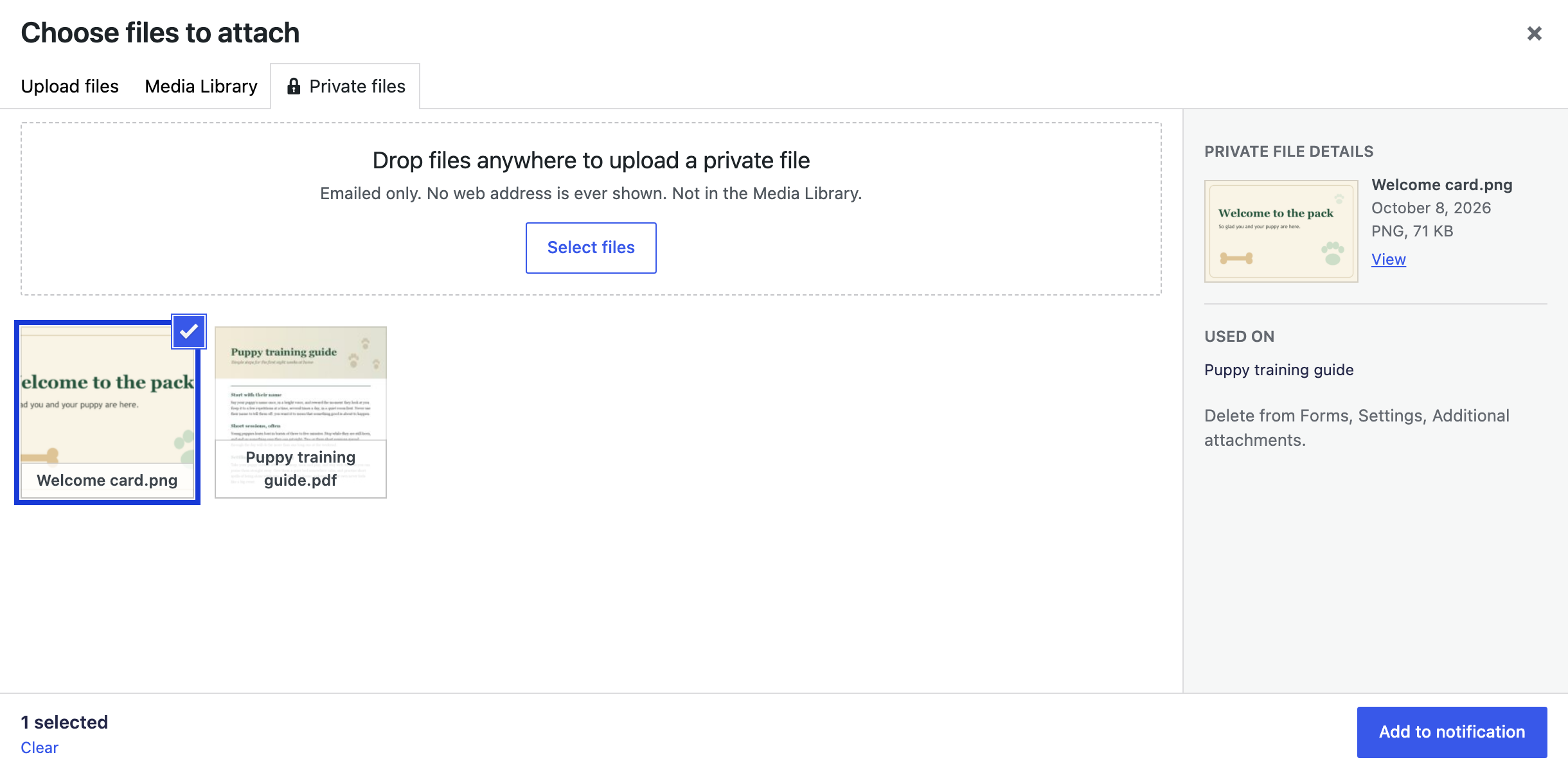
A Media Library file is fine for a PDF you already publish. For a file that should exist only to be emailed, open the Private files tab in the same window, beside Upload files and Media Library, and upload it there.
A private file is not in the Media Library and the site never shows its web address. It is emailed under its real name. Pick it with Add to notification exactly as you would pick a Media Library file, and the list marks it with a Private pill. Signed-in users who can upload files can open it with View, which goes through the plugin.
Notification attachments for Gravity Forms: brochures, price lists and private files explains how private files are stored, who can open them and why that matters.
Test your PDF attachment
Send yourself a test submission. To see what the plugin did, turn on logging for PlugUpp Dynamic Attachments for Gravity Forms under Forms, Settings, Logging. A successful send writes “attachment prepared” with the attachment IDs and file names.
If a file cannot be prepared, that notification is held back rather than sent without it. The entry gets a note that says what went wrong and how to fix it, and everything else about the submission carries on as normal.

About the plugin
Dynamic Attachments for Gravity Forms
Add your own files to any Gravity Forms notification, from a fixed list or from the page the form was on, including private files whose web address is never shown.
Static files per notification
The page’s own files, automatically
Private files, never shown by address
Held back, never sent short
