
Guide
Notification attachments for Gravity Forms: brochures, price lists and private files
Gravity Forms notification attachments for files you already have: a fixed brochure or price list, each page’s own files from one form, and private files never shown by address.
Published October 11, 2026 in Guides
Out of the box, Gravity Forms notification attachments are the files a visitor uploads with the form. It cannot attach a file you already have, such as a brochure, a price list or the guide a page is about. PlugUpp Dynamic Attachments for Gravity Forms adds that to each notification on its own. This guide covers what each kind of attachment is for: a fixed file, the page’s own files and a private file. For the step-by-step setup, start with How to attach a PDF to a Gravity Forms notification.
What Gravity Forms notification attachments are for
A notification with a file attached turns a form into a delivery. The plugin is for sites that send a document when a form is filled in: a guide request, a brochure download, a booking with terms attached, a course with its handouts.
Every notification gets an Additional attachments section at the end, with two switches: Static attachments and Attach the files from the page the form was on. Use either or both. Nothing changes until you turn one on, and Gravity Forms’ own setting for uploaded files works as before. The plugin is on WordPress.org and needs Gravity Forms 2.5 or later.
Fixed notification attachments: the same file on every send
Static attachments are files you pick once for a notification, from the Media Library, the private files or both. Every send of that notification carries them. They suit a file that does not change with the page: one brochure, one price list, one set of terms.
The notification stores a reference to each file, never a web address and never a copy. At every send the plugin looks up where the file is right now, so a price list replaced through the Media Library goes out in its new version on the next send.
The page’s own files, from one shared form
The second switch sends the files in the Email attachments box on each page. When someone sends the form, Gravity Forms saves the page they sent it from on the entry, and the notification attaches every file in that page’s box. One form and one notification can then deliver different files from every page it sits on, with no hidden field and no merge tag to set up.
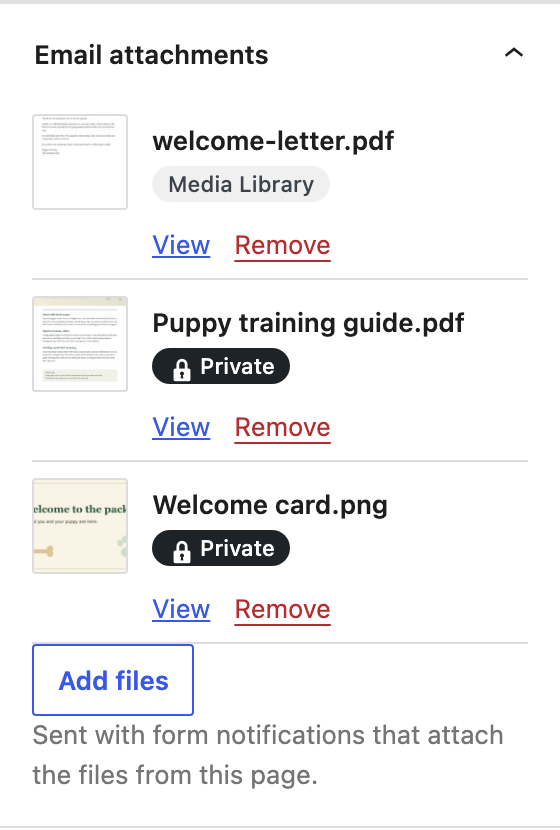
This needs Gravity Forms 2.9 or later, the first release that saves the page on each entry. On an older release the entry has no page, so the notification is held back.
The form has to be on the page itself. An archive or a preview has no page, and a form in a popup counts as sent from the page the popup opens on. Only published pages without a password, of the types you tick under Forms, Settings, Additional attachments, can give files. Every file in the box goes, or none does.
What the readiness line tells you
While Attach the files from the page the form was on is on, a line under it says how many published pages hold the form and whether their Email attachments boxes have files. It reads one of these:
- “The form is on 1 published page, which has 2 files in its Email attachments box.” You are ready.
- “The form is on 2 published pages, and 1 has files in its Email attachments box.” A send from the other page is held back until you add files to its box.
- “No published page with this form has files in its Email attachments box yet.” Add files to a page’s box, or check the form is on the page.
- “No published page has this form in its content.” The plugin reads page content, so a form placed by a page builder’s own widget or by a theme template may be there all the same. Check the page in a browser.
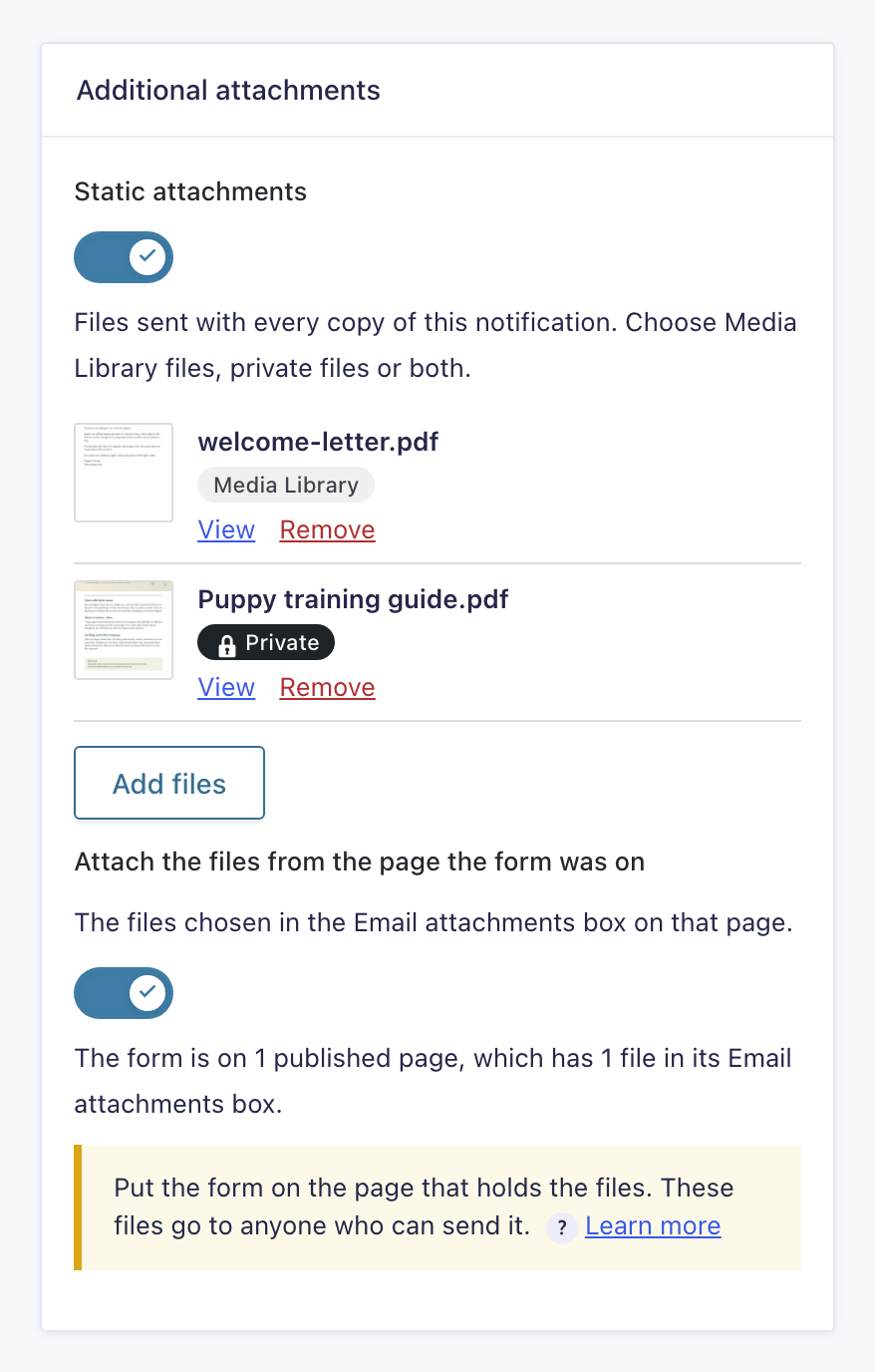
Only the pages whose files can be sent are counted. The line is worked out when the notification opens, so update a page and reopen the notification to see the change.
Private notification attachments, never shown by address
Wherever you choose files, the media window has a third tab, Private files, beside Upload files and Media Library. A file uploaded there is not in the Media Library and the site never shows its web address. It exists to be emailed, and it arrives under its real name.
Each private file sits alone in a folder with a long random name. The plugin never prints that name on a screen, in its log, in an entry note or in an email. Nothing links to the file, so a visitor or a search engine has nothing to follow, and the name is too long to guess. No server rule is involved, so it works the same on every host.
That suits a file you hand over in return for a form, because it exists only to be emailed. The protection is that the address is unknown, which is why the plugin never discloses one. An emailed copy belongs to its recipient, like any attachment.
Signed-in users who can upload files open a private file with View, which goes through the plugin. Anyone else is turned away. Private files are managed on the plugin’s tab under Forms, Settings, where the list shows where each file is used, with links to those pages and notifications.
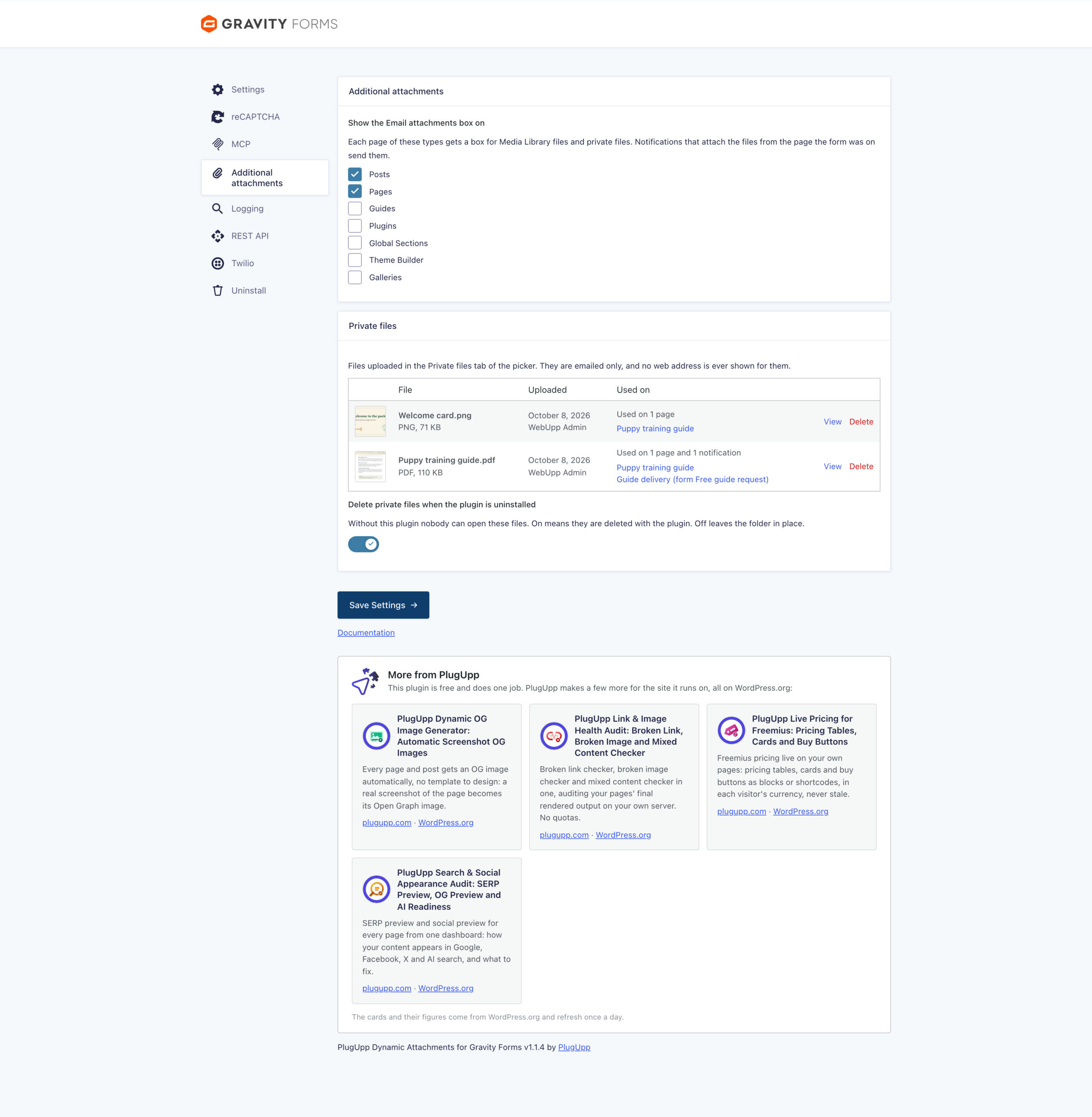
Delete there removes a file from the server and from every page and notification that uses it. Remove, on a page or a notification, only takes it off that one list. When you delete the plugin, its private files are deleted too, because nobody could open them without it. A switch on the same tab keeps the folder instead.
Held back, never sent short
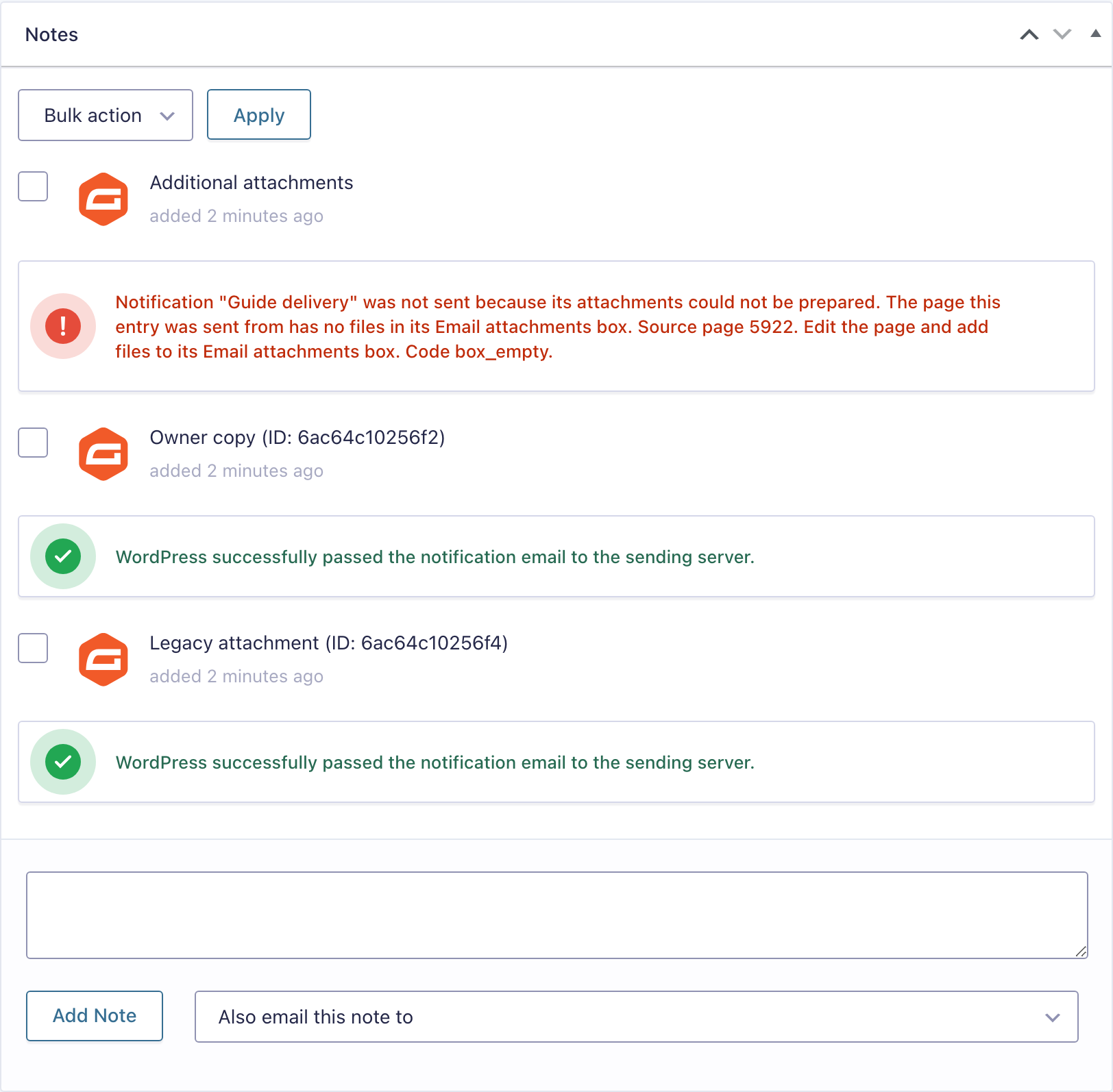
Every file a notification names is required. If any of them cannot be prepared, that one notification is not sent, and the entry, the confirmation and every other notification carry on as normal. A failure on the page’s files never falls back to the static files alone.
The entry gets a note saying which notification was held back, why, and how to fix it, ending with a code. Fix the cause, then resend the notification from the entry. A resend uses the page saved in the entry and the files that page holds today.

About the plugin
Dynamic Attachments for Gravity Forms
Add your own files to any Gravity Forms notification, from a fixed list or from the page the form was on, including private files whose web address is never shown.
Static files per notification
The page’s own files, automatically
Private files, never shown by address
Held back, never sent short
