
Guide
Automatic OG images for every WordPress page, with no template to design
Give every WordPress page an automatic OG image with no template to design: a real screenshot of the page, captured in the background and shared as its og:image.
Published June 20, 2026 in Guides
Every page and post on your site can carry its own share image without anyone designing one. This guide shows how to give every WordPress page an automatic OG image: a real screenshot of the page itself, taken in the background, refreshed on a schedule and shared as the og:image whenever someone posts the link. There is no template to design and nothing to keep in step with your pages.
Where a WordPress page usually gets its share image
When a link is shared, the social platform reads the page’s og:image tag and shows that image in the preview. On most sites the tag is filled from one of two places, and both leave gaps.
The first is the SEO plugin’s default: one static image, often the logo, used for every page that has none of its own, so every link from the site looks the same in a feed whatever the page says. The second is the featured image, which exists only where somebody chose one, so every page nobody got round to shares without it.
Then there are the pages that have no featured image by definition: the homepage, category and tag archives, and author pages. They share the default or nothing at all.
How the plugin gives every page an automatic OG image
PlugUpp Dynamic OG Image Generator takes a real browser screenshot of each page and uses it as the og:image, so a shared link shows what the page actually looks like. Captures run in the background through WP-Cron: the plugin sends each job to the PlugUpp screenshot service, which renders the page at the 1200×630 Open Graph size and delivers the image back to your site. It is stored there as a WebP file in your uploads folder and served from your own site.
Each screenshot refreshes on a schedule, every 30 days by default, and the old image keeps being served until the new one is ready. Turn on Regenerate on post update to take a fresh capture when a published post is saved, or press Regenerate Now in the editor sidebar to take one straight away. Use a screenshot of the page as its Open Graph image covers how captures run and how to check one.
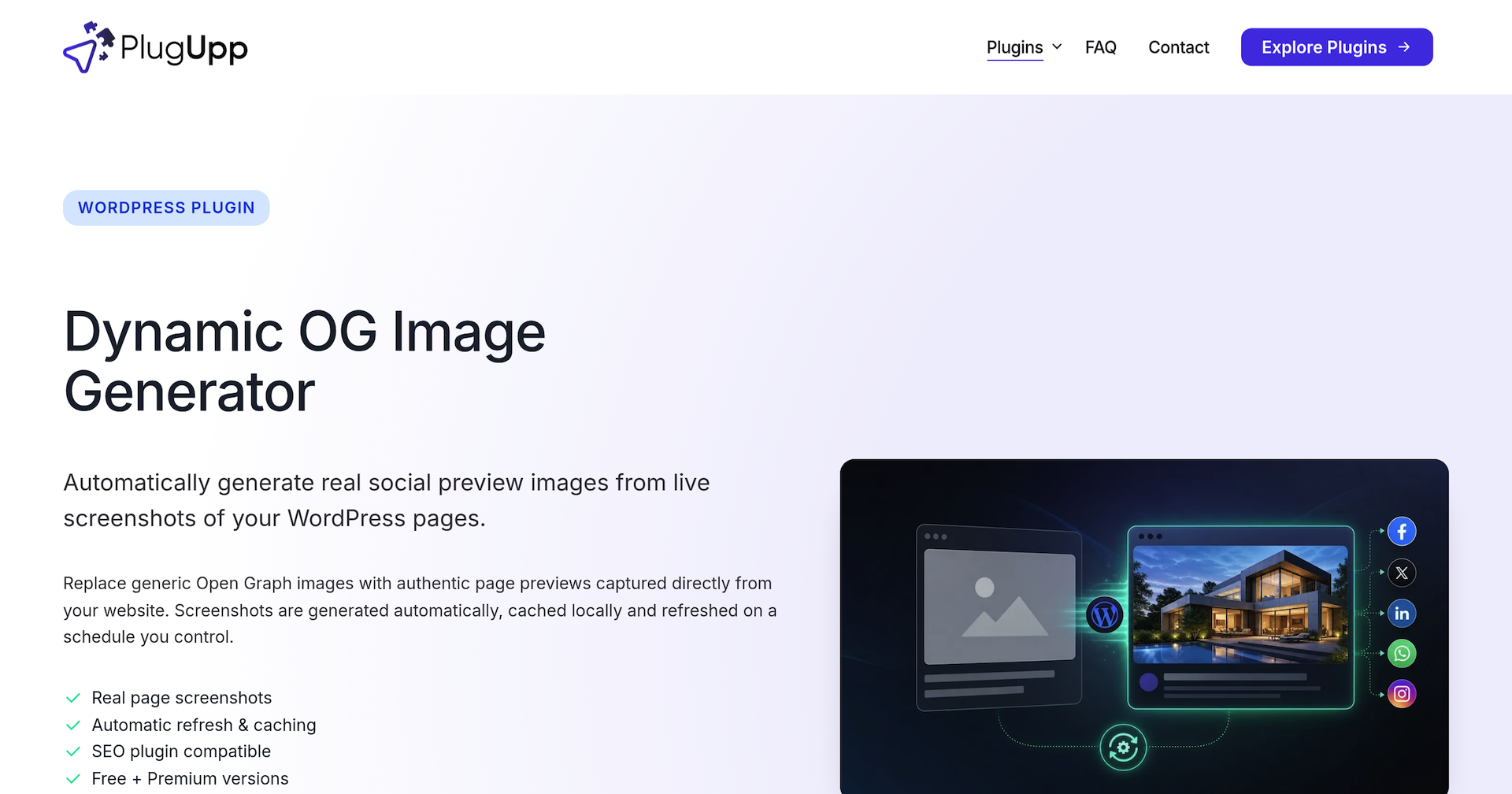
Choose what each content type shares
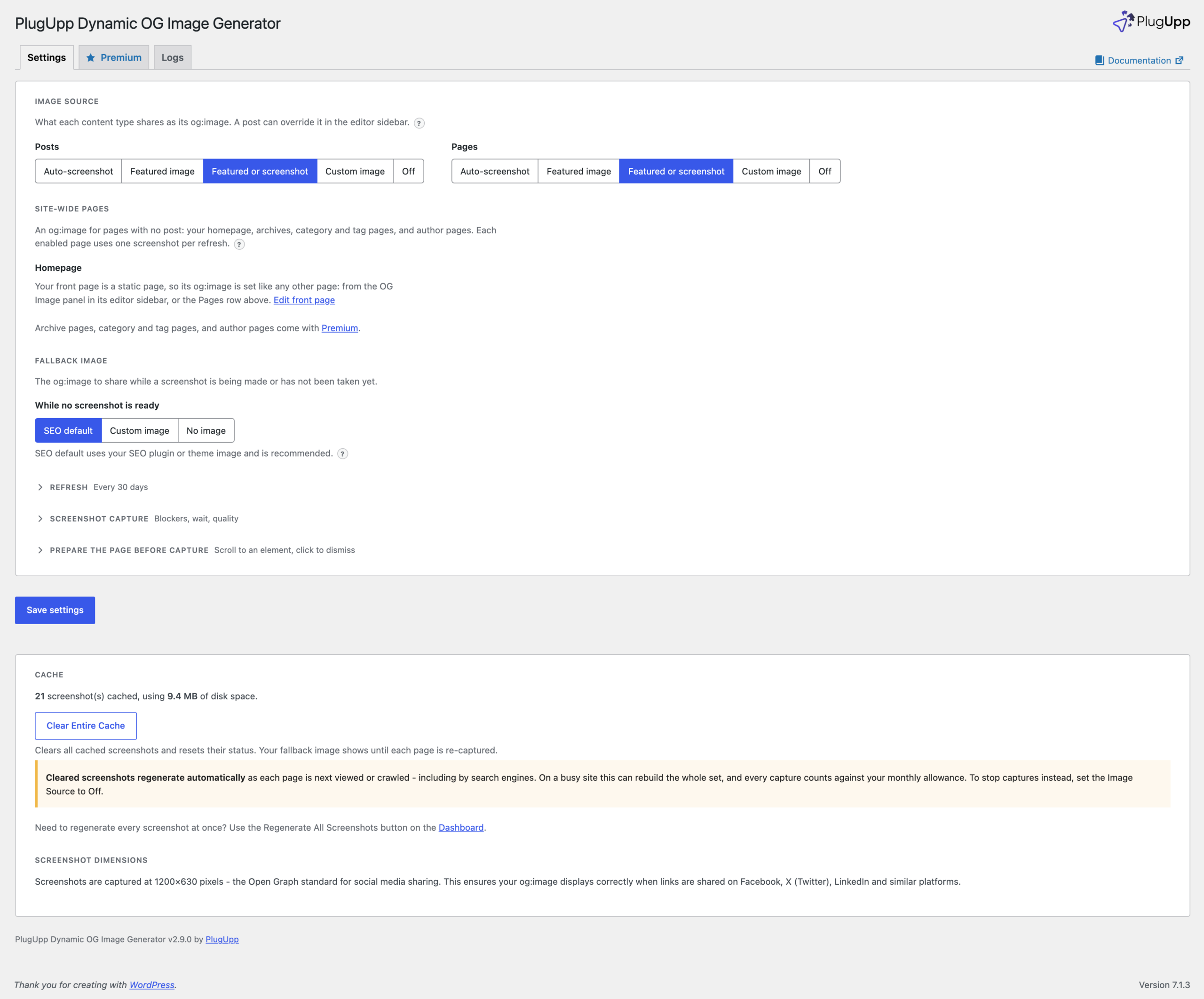
The plugin does not have to screenshot everything. Under OG Images, Settings, Posts and Pages each have a row of five choices: Auto-screenshot, Featured image, Featured or screenshot, Custom image and Off. Featured or screenshot uses a post’s featured image where it has one and a screenshot where it does not, so the pages nobody gave an image are covered and the rest keep the image you chose. Featured image and Custom image never use your screenshot allowance.
A fresh install starts Posts and Pages on Off, so nothing is captured until you choose. The setup row at the top of the Dashboard asks the question in its second step, and Auto-screenshot is the standard answer.
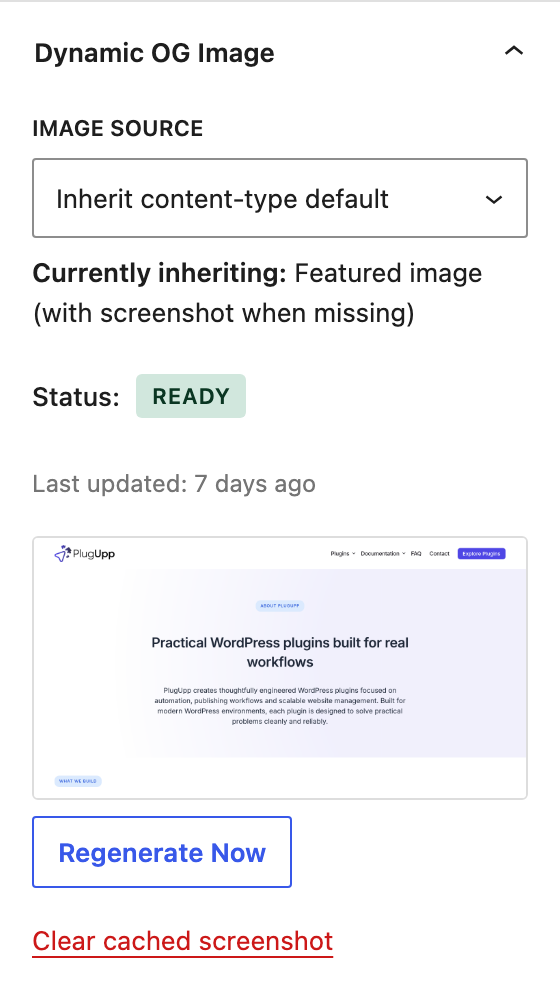
Any single post or page can override its content type from the plugin’s panel in the block editor sidebar, with the same five choices plus Inherit content-type default. The panel previews the image that will be shared.
What it overrides and what it leaves alone
The plugin handles one thing: the og:image and twitter:image tags. Titles, descriptions, structured data, canonical URLs and sitemaps stay with your SEO plugin, which carries on as before. With one of the SEO plugins it supports, the image is handed over through that plugin’s own image filters, so the rest of its social tags are untouched. Without an SEO plugin, it writes the og:image and twitter:image tags into the page head itself.
Off steps the plugin out for that content type or post, and your SEO plugin’s default applies. While a screenshot is still being taken, the Fallback image setting decides what is shared: your SEO plugin’s or theme’s own image, a custom image you choose, or no image until the screenshot is ready.
Automatic OG images for the homepage, archives and author pages
The Site-wide Pages section of the Settings page covers the pages with no post behind them: the homepage, post type archives, category, tag and other taxonomy pages, and author pages. They have no featured image by definition, so a screenshot is usually the only real image they can carry. The screenshot of an archive is the archive.
Each group is Auto-screenshot, one Custom image for the whole group, or Off, which is the default. A live page count beside each row shows how many screenshots a refresh of that group will use before you switch it on, which matters for a taxonomy with many terms, since every term page is captured. If your homepage is a static page, it is set like any other page, from its own editor sidebar or the Pages row.
What is free and what Premium adds
The free plugin covers Posts, Pages and the homepage, with the per-post choice in the editor, a default for each content type, the refresh schedule, and blocking of ads, cookie banners, trackers and chat widgets before each capture. Each site gets a one-time allowance of 25 startup screenshots, enough to try the plugin out.
Premium adds:
- Archive, category, tag and other taxonomy pages, and author pages, in Site-wide Pages
- Custom post types, including WooCommerce products
- Per-page capture overrides in the editor sidebar: viewport width, capture delay, elements to hide, scrolling or clicking before the capture, dark mode, country routing and a custom capture URL
- Retina captures at 2x or 3x
- Saving each capture to the Media Library, and optionally setting it as the post’s featured image
- A monthly screenshot allowance on top of the startup one, from 30 to 1,000 a month depending on the plan, shared across the sites on the licence
To start, install the plugin free from WordPress.org, finish the three steps of the setup row on the Dashboard, and choose Auto-screenshot or Featured or screenshot for Posts and Pages. Plans and pricing are on the product page.

About the plugin
Dynamic OG Image Generator
Automatically generate real social preview images from live screenshots of your WordPress pages.
Real page screenshots
Automatic refresh & caching
SEO plugin compatible
Free + Premium versions
