
Guide
Use a screenshot of the page as its Open Graph image
Use a real screenshot of each page as its Open Graph image: how captures run in the background, how to check one, the screenshot allowance, and how it sits with your SEO plugin.
Published July 4, 2026 in Guides
The image a link carries when it is shared should show the page it leads to. A screenshot OG image does exactly that: the share preview is a real picture of the page, taken in a real browser, so what people see in the feed is what they get when they click. This guide covers how PlugUpp Dynamic OG Image Generator takes those screenshots, how to check one, and how they sit alongside your SEO plugin.
Why a screenshot OG image is the honest share image
A share image designed separately is a second version of the page, and it has to be remade whenever the page changes. A logo used as the default says nothing about the page being shared. A screenshot is the page: its headline, its layout and its colours, as they were when it was captured. When the page changes, the next capture changes with it.
It also covers pages that could never carry a chosen image. An archive, a category page or an author page has no featured image by definition, so a screenshot is often the only real image it can carry. Automatic OG images for every WordPress page covers which pages the plugin fills and what is free.
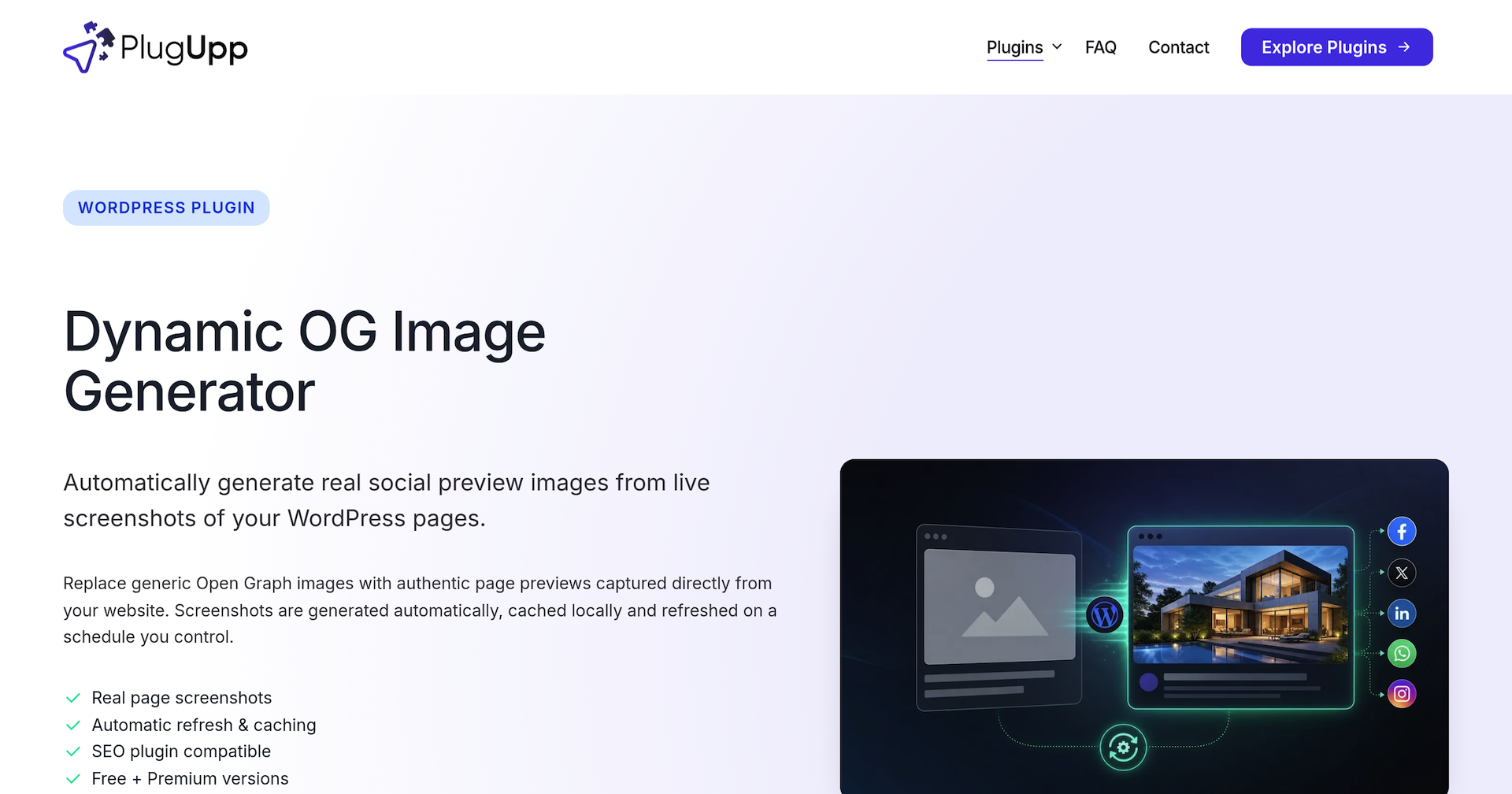
How a screenshot OG image is captured
Captures run in the background, so nothing slows your site down. When a page is published, the plugin queues a job through WP-Cron and submits it to the PlugUpp screenshot service. The service loads the page in a browser, renders it at the 1200×630 Open Graph size and delivers the result back to your site, which stores it as a WebP file in its uploads folder and serves it from there.
The service is sent the page’s public address, the capture settings and your licence details, and the image comes back to your site. There is no API key to paste and no separate account to open: the plugin authenticates with the service using your PlugUpp licence, and connecting on the free plan takes an email address and no payment details. The site needs to be served over https, which the screenshot service requires.
Before each capture the service can block ads, cookie banners, trackers and chat widgets, so they stay out of the picture, on every plan. WP-Cron runs on site visits, so on a site with regular traffic a screenshot usually appears within a few minutes of publishing. After that it refreshes every 30 days by default, and the previous image is served until the new one lands.
Check a capture in the editor
Open the page in the block editor and the plugin’s panel in the sidebar shows where its share image stands: the image source it uses, a status of Pending, Ready, Failed or Quota exceeded, and a preview of the image that will be shared. Regenerate Now takes a fresh capture straight away, and it is also how you retry a capture that failed, with the details in the plugin’s log.
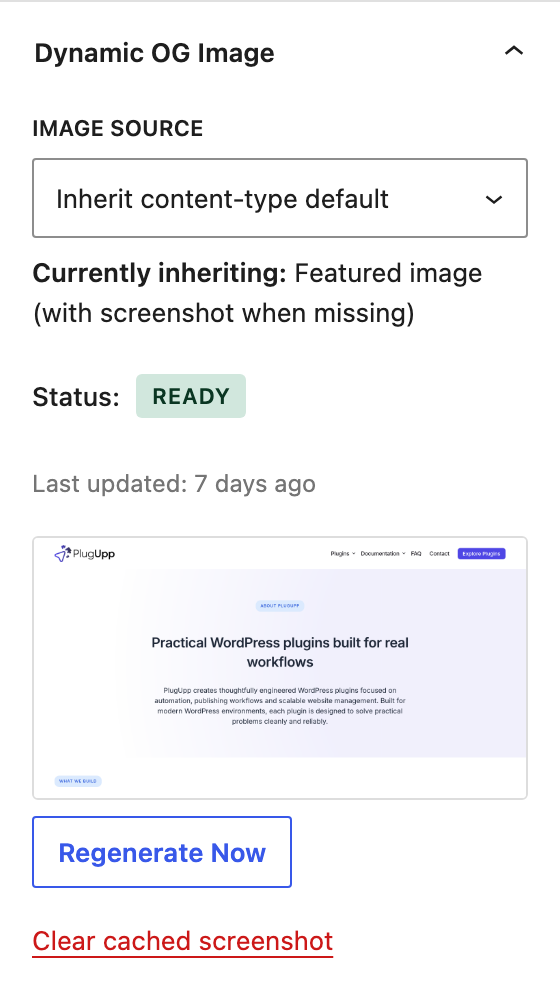
To check from outside the editor, view the page’s source and search for og:image. A screenshot’s address points into the dynamic-og-images folder of your uploads. The social platforms’ own sharing debuggers show the preview as they will draw it.
Keep track of the screenshot allowance
Every capture uses one screenshot from your allowance, and the Dashboard shows where you stand, read live from the screenshot service so the figures cannot drift. On the free plan each site has a one-time allowance of 25 startup screenshots, and the headline counts down what is left. Paid plans add a monthly allowance, shared across every site on the licence and reset each month on the subscription anniversary.
Featured image and Custom image sources never use the allowance. If it runs out, the screenshots you already have carry on being served, and pages waiting for a capture are marked as over quota and captured automatically when the allowance resets on your next billing date. Regenerate All Screenshots shows how many screenshots a full run would use, next to what you have left, and asks before it queues anything.
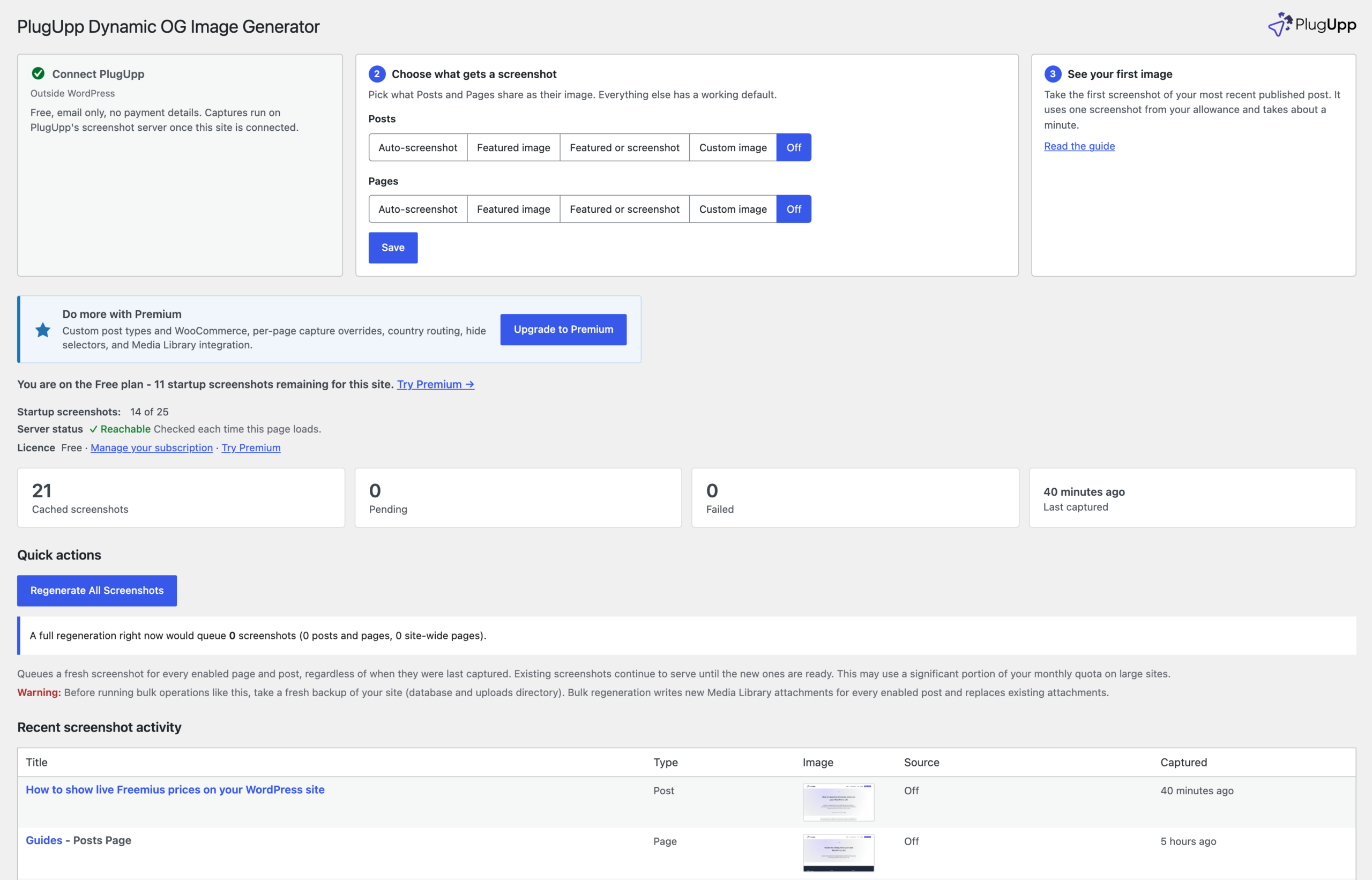
How the screenshot replaces your SEO plugin’s og:image
The plugin overrides your SEO plugin’s og:image only where a screenshot exists. Until a page’s screenshot is ready, the fallback you chose is shared, and with the recommended choice, SEO default, that is your SEO plugin’s or theme’s own image, so a page keeps the image it had until its screenshot lands. Once it does, the screenshot replaces the og:image and twitter:image for that page, and nothing else.
With one of the SEO plugins it supports, the screenshot is handed over through that plugin’s own image filters, and titles, descriptions, structured data and sitemaps stay with the SEO plugin. Without one, the plugin writes the og:image and twitter:image tags into the page head itself. Pages set to Featured image, Custom image or Off follow those choices instead, so a page with a share image someone made by hand keeps it.
To try it, install the plugin free from WordPress.org, choose Auto-screenshot for Posts and Pages in the setup row, and take your first capture from the Dashboard. Plans and pricing are on the product page.

About the plugin
Dynamic OG Image Generator
Automatically generate real social preview images from live screenshots of your WordPress pages.
Real page screenshots
Automatic refresh & caching
SEO plugin compatible
Free + Premium versions
