
Guide
How to find broken images on a WordPress site
Find broken images on a WordPress site with a broken image checker that reads the page your visitors are served, theme and page builder included, and fix each one at its source.
Published August 14, 2026 in Guides
A broken image is easy to miss on your own site: you notice one, on one page, and there may be dozens more on pages you have not opened this month. This guide explains why images break on WordPress, why a broken image checker has to read the page your visitors are served rather than the database, and how to find and fix every broken image with PlugUpp Link & Image Health Audit.
Why images break on a WordPress site
Almost every broken image is an address that used to work and no longer points at a file. The common ways it happens:
- Moved or deleted uploads. A file deleted from the media library, a tidy-up of the uploads folder, or a migration that left folders behind. Posts keep the old address, and nothing tells you the file has gone.
- Hotlinked images. An image shown straight from another site’s server works until that site moves it, deletes it or stops serving it to other sites.
- Domain and CDN changes. A move to a new domain, or a change in how images are served from a CDN, changes image addresses. Anything still pointing at the old host breaks.
- Responsive image sizes. WordPress offers the browser several sizes of each image in a
srcset, and the browser picks one to suit the screen. If one of those resized copies is missing, the image breaks only on the screens that ask for it, which is how it can look fine on your desktop and broken on a phone.
Why the rendered page is what a broken image checker should read
Images do not only come from post content. The theme adds a logo and header images, widgets add their own, the footer has more, page builder blocks set backgrounds, and the srcset of every image is written out as the page is rendered. A tool that reads image addresses out of the database sees only part of that, and never checks the rest.
PlugUpp Link & Image Health Audit checks the links and images your visitors actually see. It renders each of your own pages through the normal front-end pipeline and inspects the final HTML, so images added by your theme, menus, widgets, footers and page builder are checked alongside the ones in your posts. It all runs on your own server, with no per-link quota.
Run a scan with the broken image checker
Install the free plugin from WordPress.org, activate it, and open Link Health in the admin sidebar. Until your first scan has finished, the Dashboard shows one step, Scan your site. Click Scan now. The plugin renders each page, collects every link and image it contains, and checks each one: internal addresses against your own site, external ones over HTTP.
The first scan covers posts and pages. If your images also appear on custom post types, or you want drafts checked before they go live, switch those on in Settings; both are free and off by default. Check resources, on by default, adds the stylesheets, scripts, icons and fonts each page references.
Reading the findings
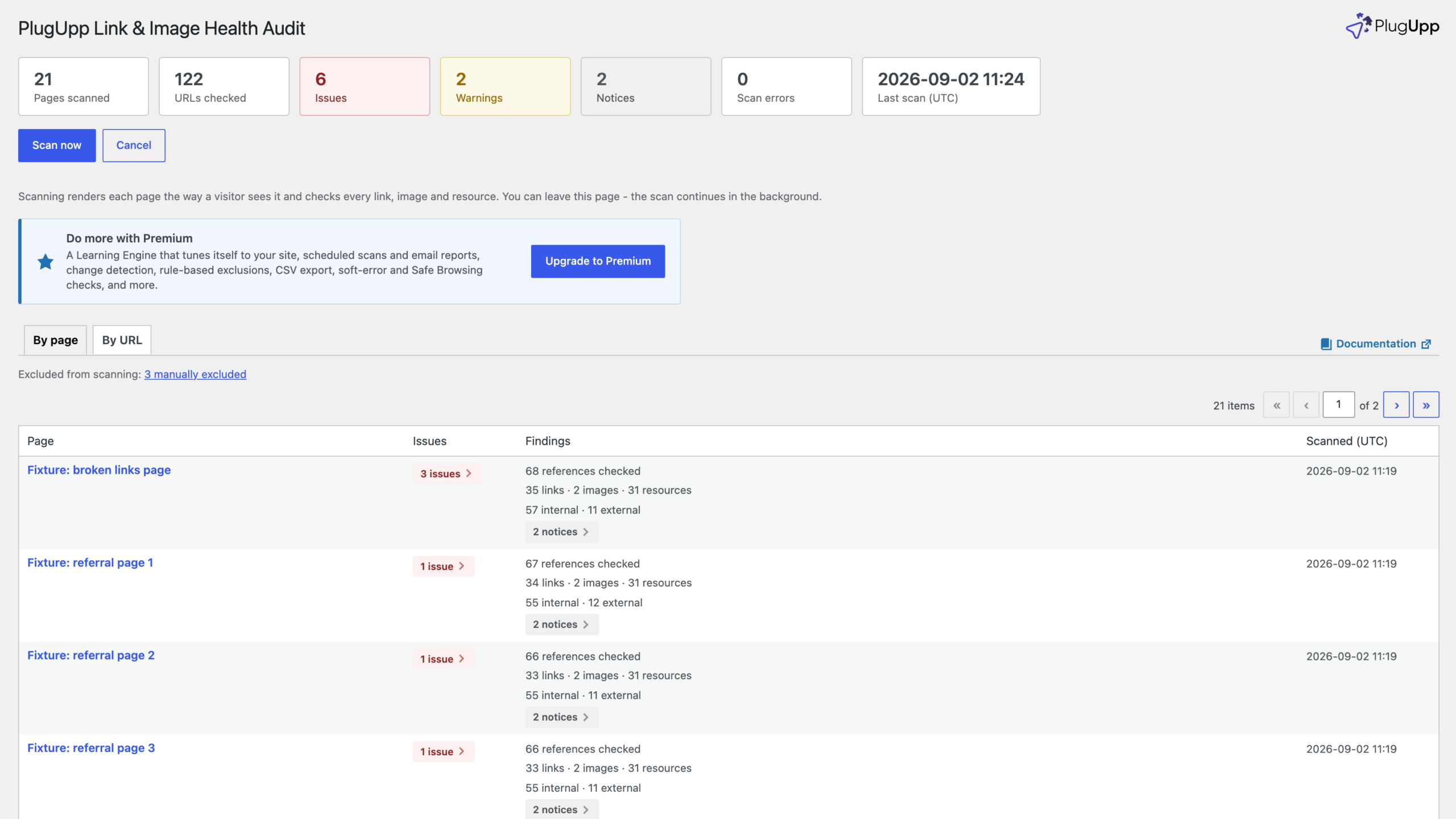
The By page view lists every scanned page with its own Issues, Warnings and Notices counts, and how many links, images and resources were checked on it. It is sorted worst-first. A responsive image counts once there, however many sizes its srcset offers.
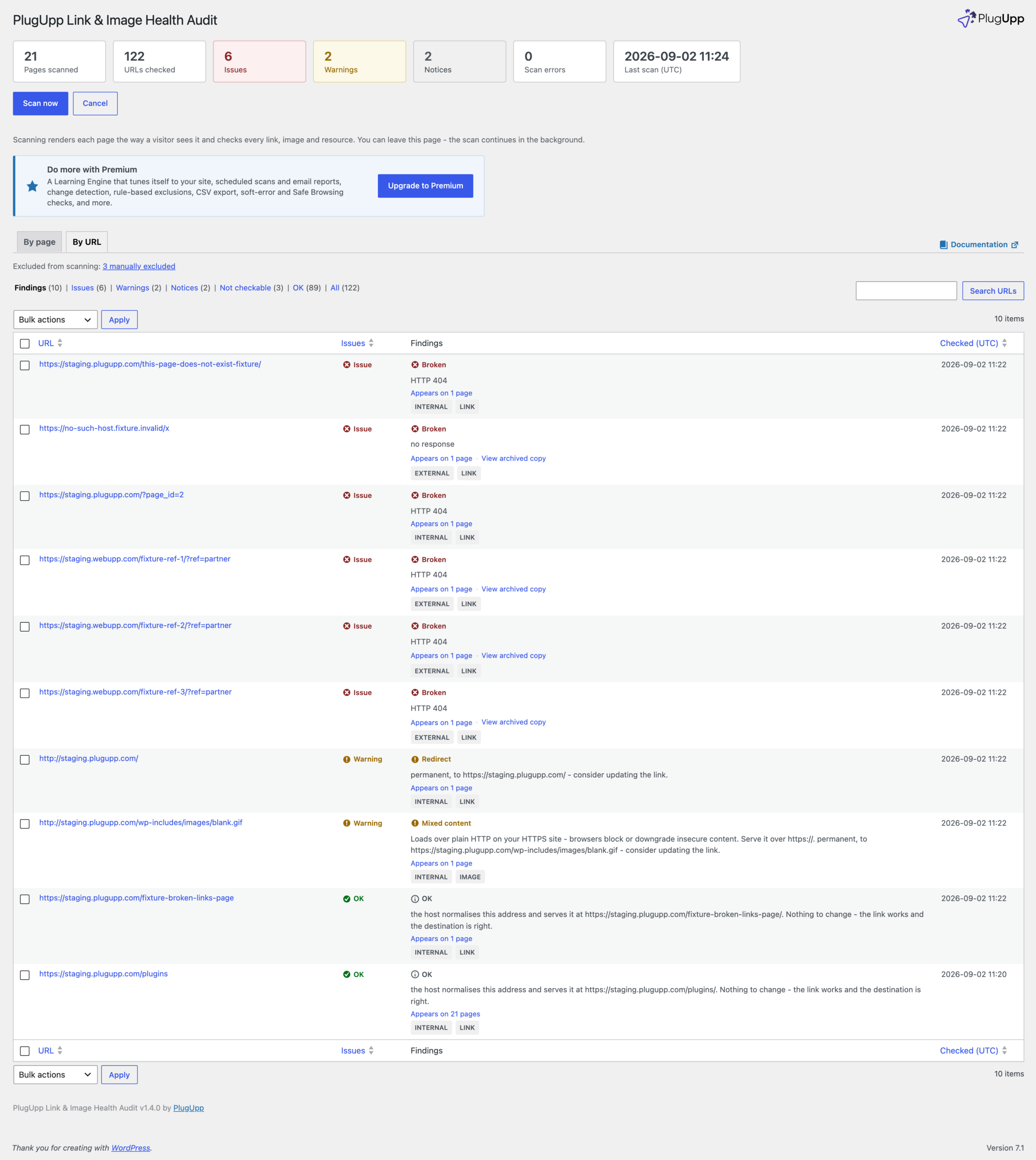
The By URL view lists every unique link, image and resource with one verdict and a count of the pages that use it, each row labelled as internal or external and as a link or an image. A broken image is an Issue: a 404 or other error, or a host that cannot be reached. An image loading over plain HTTP on an HTTPS site is a Warning instead, for mixed content, which has a guide of its own: How to find mixed content on a WordPress site, and fix it.
What to do with each broken image
Click a finding to open its details. It lists every page that uses the image, so you know how far one fix reaches, and gives the evidence from the actual response, such as 404 Not Found. View source re-renders the page and highlights the image right where it appears in the HTML, showing whether it came from your content, a widget, the theme or a page builder block. Then fix it at the source:
- A missing upload. Upload the file again, or choose a replacement from the media library and update each page the finding lists.
- A hotlinked image that has gone. Replace it with a copy you host yourself, where you have the right to use it, so the next change on the other site cannot break your page.
- An old domain or CDN address. When many images share the broken host, the fix is usually one setting or one search and replace rather than page by page. The page count on each finding shows which addresses to fix first.
- An image from the theme, a widget or a builder block. Choose the image again where it was set: in the Customizer, the widget, or the block’s own settings.
- An image you mean to leave. Ignore stops a URL counting while leaving it visible, and you can reverse it any time from the Ignored view. Pages you never need checked can be excluded from their row, from the Exclusions screen, or in bulk from the Posts and Pages screens.
When a page is fixed, use Re-scan on its row in the By page view to check just that page again, without a scan of the whole site.
More from the broken image checker on Premium
Everything above is in the free plugin. Premium adds an image alt-text audit, which finds images with missing, empty or suspicious alternative text on the rendered page, and scheduled scans with email reports and change detection, so an image that breaks next month is reported without you going looking. The plan comparison is on the product page.

About the plugin
Link & Image Health Audit
Find broken links, broken images and SSL problems on the pages your visitors actually see.
Rendered-page scanning
Broken links & images
Local & private
Free + Premium versions
