
Guide
How to check your Open Graph tags before you share a page
An OG preview for every page before you share it: what og:title, og:description, og:image and the X card do, why a share looks wrong, and how to fix and re-check each page.
Published July 8, 2026 in Guides
Paste a link into Facebook, LinkedIn, X or a chat and the platform builds a preview card from tags in the page: an image, a title and a description. When those tags are missing or wrong, the card goes out with the wrong text or no image at all, and nothing in the editor tells you. This guide covers what the Open Graph tags do, why a share looks wrong, and how to get an OG preview for every page on your WordPress site before anyone shares it.
What og:title, og:description, og:image and the X card do
The share card a platform draws comes from the page’s Open Graph tags. og:title is the headline, og:description the line of text beneath it, and og:image the picture. With no og:title, platforms fall back to the page’s own title tag. With no og:image, social platforms will guess an image or show none.
X adds one more: the X (Twitter) card type, which names the kind of card it shows, a large image for example. A page that declares no card type is flagged on its own.
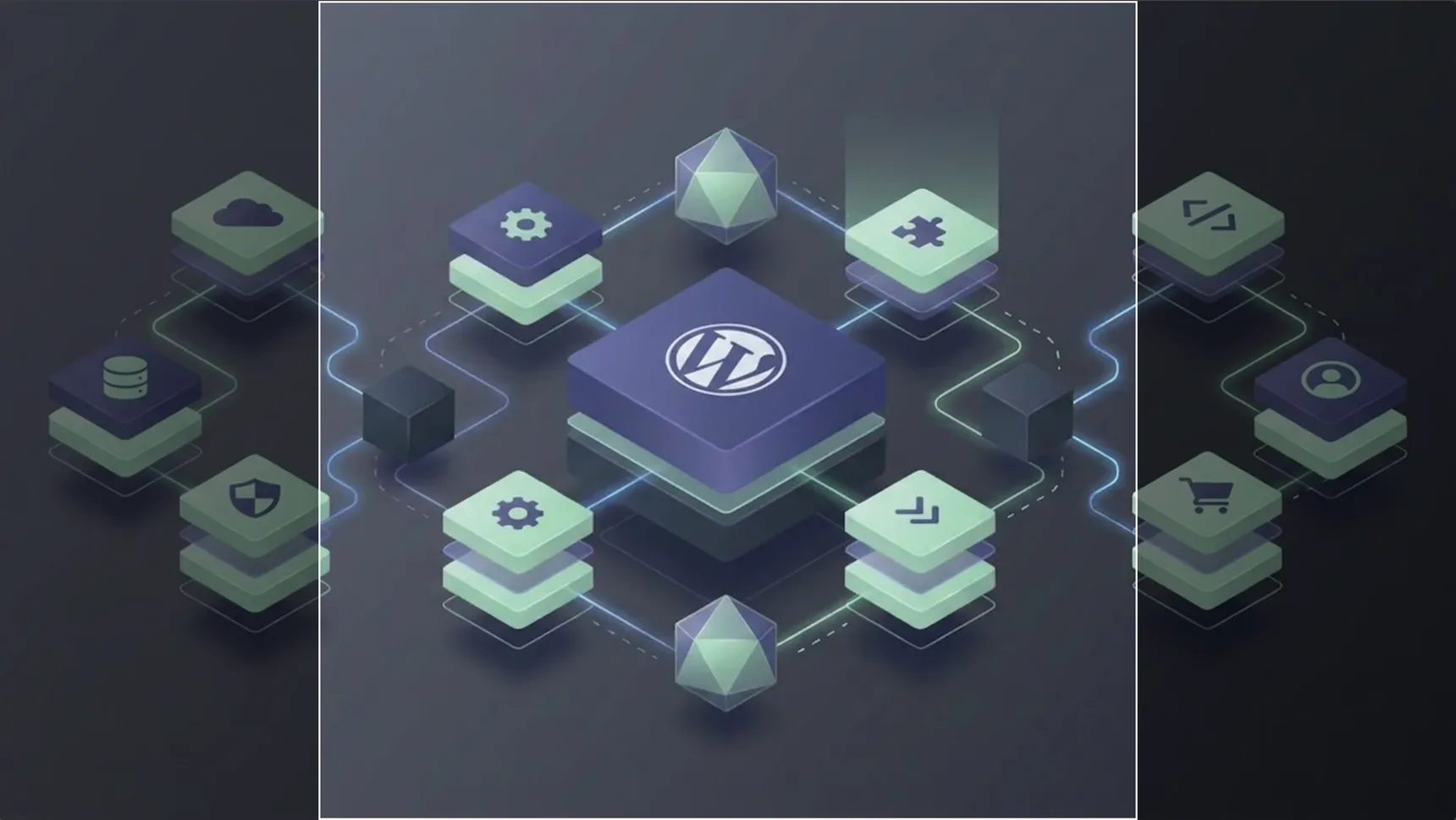
The platforms then crop the image to their own fixed shape. Facebook, LinkedIn and similar platforms use a 1.91:1 share-card crop, so a logo, a face or a line of text outside that frame does not appear on the card.
Why a page shares the wrong image, or none
Most broken shares come down to the image. These are the causes the audit detects:
- No og:image at all. A common cause is a featured image in a format social platforms do not display, such as SVG or AVIF. Some SEO plugins then leave og:image out rather than publish an image the platforms would reject, so the page looks correct in the editor and shares with no image. Where it can, the finding names the attachment and its format.
- An og:image the platforms cannot use: not an absolute URL, failing to load, served in a format they do not display, or declared more than once.
- Someone else’s image. When the featured image cannot be shared and something else supplies the og:image, a generated share image or a site-wide default, the page shares correctly but not with its own picture. On a site with a default social image, every page in that position shares the same one.
- The wrong shape. An image can load perfectly and still lose its subject to the platform’s crop.
Missing og:title and og:description tags are flagged too, alongside the image problems.
An OG preview for every page in one place
PlugUpp Search & Social Appearance Audit renders each of your pages the way a visitor’s browser would and reads the tags that actually ship, whichever SEO plugin, theme or page builder produced them. It is not an SEO plugin and does not change your metadata. It audits the output, which makes it a second opinion on whatever tool you use to set it.
After a scan, the Social Appearance tab is the OG preview for the whole site. Each row is one page shown as a Facebook and LinkedIn style share card, with its image, title and description, plus the X card type. Warnings and notices sit on the card, so a missing description or image is visible without opening anything.
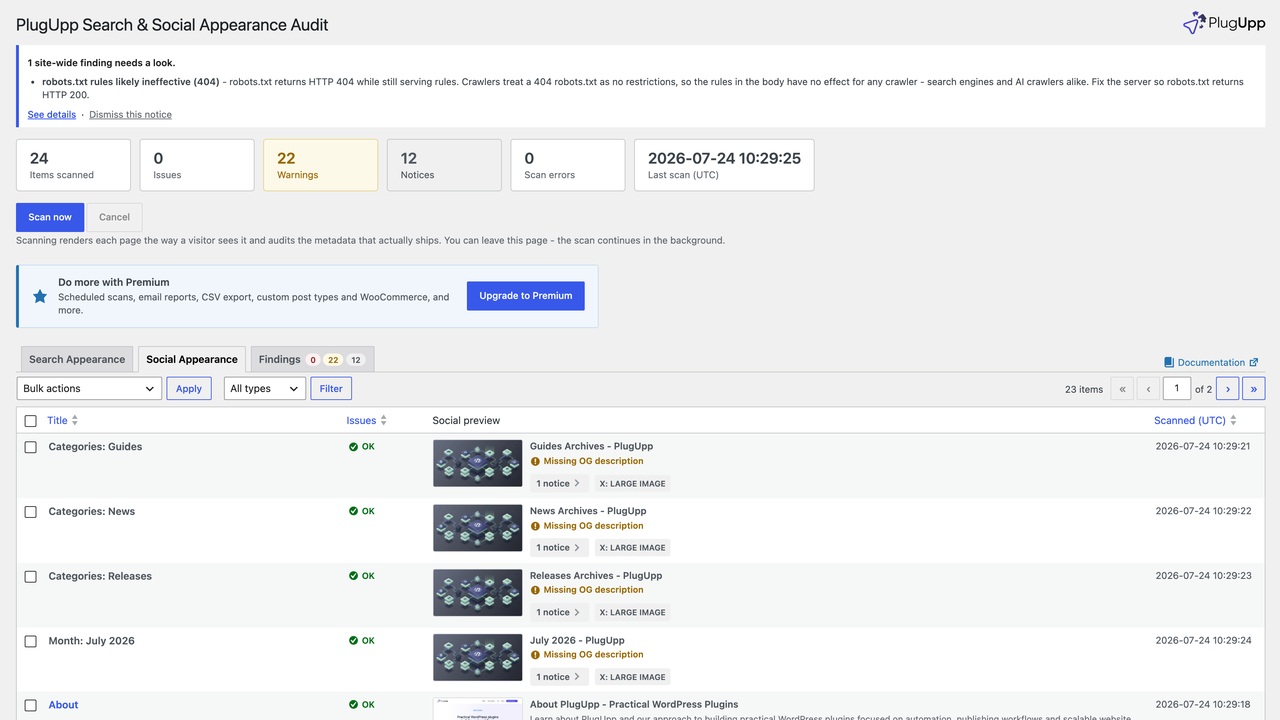
Click any preview image to open it full size. The area each platform keeps is highlighted and the trimmed edges are dimmed, so you can see at a glance whether a logo, a face or key text falls outside the frame. On a social card the frame is the 1.91:1 share-card crop; on a search card it is Google’s square mobile thumbnail. If an image already matches the platform’s shape, no frame is shown, because nothing is being cropped.
Paid plans add Enhanced scan, which predicts the fallback image a platform may pick for a page that has none, and flags weak social images.
Fix each page, then re-check the OG preview
Click a page’s Warnings or Notices badge to open the details popup. Each problem is listed with its evidence: the og:image URL that shipped, the content type it was served as, or the featured image’s attachment number, format and filename. Edit page takes you straight to the editor.
For an image problem the fix is the same in every case: use a JPEG, PNG, GIF or WebP, either as the featured image or as a social image set explicitly. Then press Re-scan in the popup. It re-audits that one page on the spot, so you can confirm the fix without running a full scan.
A page set to noindex keeps its social findings at full severity, because a noindexed page shared in a chat still shows a link preview. If a finding is deliberate, ignore it on that page or sitewide; it stays visible and stops counting. On paid plans, Changes since last scan shows which images, titles and descriptions were fixed or edited since the previous full scan.
The same scan builds the search side as well. How to preview your WordPress pages in Google search results, all at once covers the Search Appearance tab, where every page is shown as a Google-style result.
PlugUpp Search & Social Appearance Audit is free on WordPress.org. Install it, press Scan now on the Appearance Audit screen, and open Social Appearance to see how every page will look when it is shared.

About the plugin
Search & Social Appearance Audit
See exactly what search engines and social networks will see.
Accurate local rendering
Search & social previews
Theme & SEO-plugin agnostic
Free + Premium versions
